 100% Free Keylogger with Unlimited Keystroke Logging
Refog Free Keylogger is a 100% free keystroke logger for Windows. It records every key typed on the PC indefinitely — no trial, no time limit, no credit card. Designed for parents and individuals who only need keystroke logging, with optional cloud access to logs from any device. Download free.
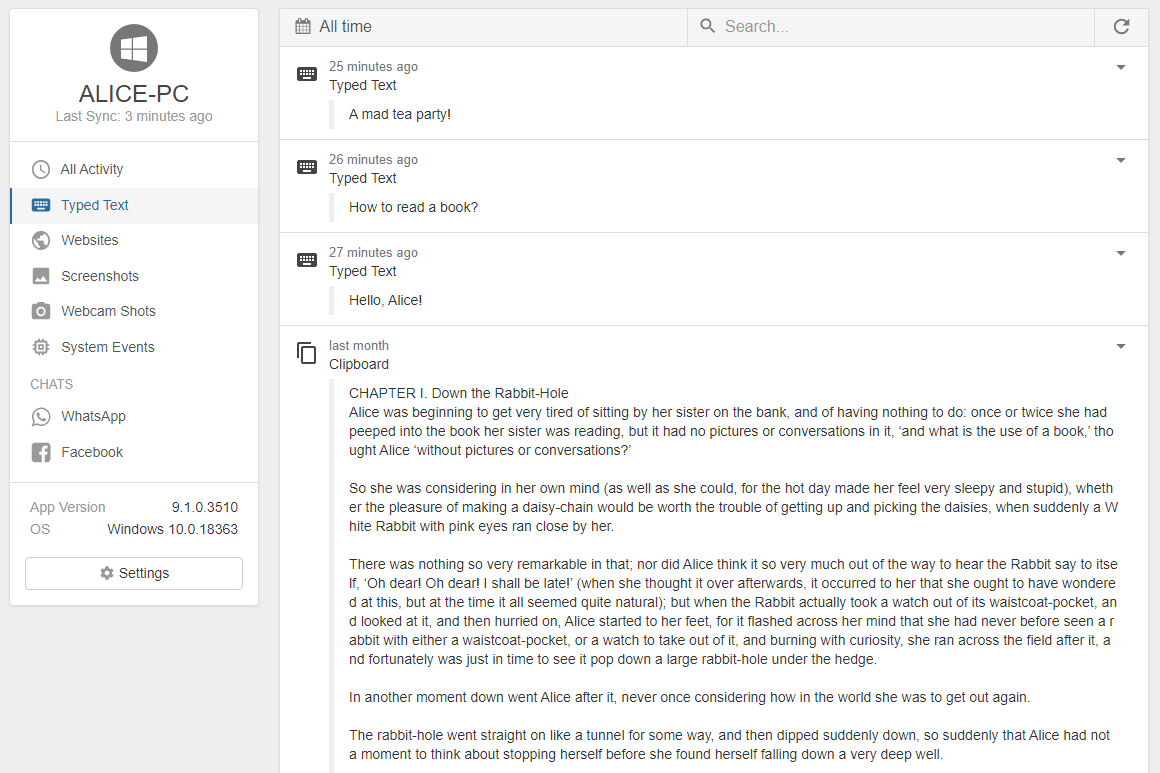
Refog Free Keylogger is a Windows application that captures every keystroke typed on the computer and stores each entry with a timestamp and the active application name. The keystroke logging feature works indefinitely with no time limits, no upgrade prompts, and no payment required.
DOWNLOAD FREE KEYLOGGER Instant Download | No Credit Card Required
What Is Refog Free Keylogger?
Refog Free Keylogger is a free Windows keystroke logger that records every key pressed on the PC and saves each entry to a local log. There is no built-in time limit, no feature lockout after a few days, and no requirement to enter payment details. It is the genuinely free version of Refog Keylogger — limited to keystroke recording, while paid plans add screenshots, website history, and chat tracking on top.
Why “Free” Actually Means Free
Most products marketed as “free keyloggers” are short trials that disable core features after 3–7 days, or shareware that demands a license once a usage threshold is hit. Refog Free Keylogger has worked the same way for over two decades: install once, and the keystroke logger keeps recording every key without ever blocking you behind a paywall.
- No trial timer. Keystroke logging works on day 1 and on day 1,000.
- No feature cap. Every key in every application is captured.
- No upgrade prompts. You will never be asked to enter card details to keep recording.
- No subscription. The free version is free permanently, not “free for now”.
How It Works in 3 Steps
- Download & install — the installer is lightweight and finishes in a couple of minutes on any modern PC. Install it only on a computer you own and tell your child or disclosed employee that monitoring is active.
- Run in the background — the program runs quietly without getting in the way, and access to the logs is protected by the password you set during setup. Visible, disclosed monitoring is the recommended default; an optional discreet mode is available for younger children on a household device where you have already explained that the family computer is monitored.
- Review logs — open the local log on the monitored PC with your password, or sign in to your Refog account from any browser to read keystrokes remotely.
What It Records
Refog Free Keylogger captures every key typed in every application on the monitored PC: web browsers (Chrome, Edge, Firefox), messaging apps, email clients, document editors, and games. Each entry is stamped with the date, time, and active application — so you see what was typed and where it was typed.
Free vs Paid Refog Keylogger
| Feature | Free Keylogger | Refog Keylogger (paid) |
|---|---|---|
| Keystroke recording | ✅ Unlimited | ✅ Unlimited |
| Active-application tagging | ✅ | ✅ |
| Optional discreet mode (disclosed) | ✅ | ✅ |
| Local + cloud log access | ✅ | ✅ |
| Periodic screenshot capture | — | ✅ |
| Website visit history | — | ✅ |
| Chat tracking (WhatsApp, Telegram, Messenger) | — | ✅ |
| Email log delivery | — | ✅ |
If keystrokes are all you need, the free version is sufficient. The paid upgrade is for users who want a fuller picture of computer activity.
System Requirements
- OS: Windows 11, Windows 10, Windows 8.1, Windows 8, Windows 7 (32-bit and 64-bit)
- Footprint: lightweight installer with negligible CPU and memory impact
- No additional drivers required
Trusted by Parents and Individuals Since 2002
Refog has shipped Windows monitoring software since 2002 and has been installed on more than 5 million computers across 201 countries. The free keylogger is maintained by the same engineering team that releases the paid Refog Keylogger and Personal Monitor — it is not abandonware, and updates ship for new Windows versions as they are released.
"I was looking for a simple way to know what my kids were doing online. Refog Free Keylogger was the perfect solution. It's easy, it works, and it's actually free." — Mark D., Parent
"Refog's free tool does exactly what it promises: logs every key without any fuss or cost. It gives me great peace of mind." — Jennifer L.

