
Refog Terminal Monitor is a centralized employee tracking solution for Windows Terminal Server and Citrix environments. It logs keystrokes, applications, websites, and screenshots for each connected user — all from a single installation point. Designed for IT administrators managing multi-user server infrastructure. $20/user/year. Try free for 30 days.
A Centralized Employee Tracking System for Your Terminal Server
Track employee activities from a single place! REFOG Terminal Monitor runs on your Terminal Server, tracking, logging and reporting all or select activities of connected employees. Using REFOG Terminal Monitor helps improve employee productivity, track attendance and enforce corporate policies.
Enforce Corporate Policies
REFOG Terminal Monitor is there to help you enforce your corporate policies on company-owned terminal servers, with staff notified that their work sessions are monitored. The numerous logs and monitors are designed to help administrators and company officers to make sure their employees are doing the right thing. Application tracking allows monitoring which programs employees launch and for how long they stay open. Keystroke logging saves everything typed from the keyboard. Real-time key press monitoring provides instant alerts when one of the pre-defined key phrases is detected, allowing preventing information leaks and helping enforce corporate security policies. The chat tracking module monitors and decodes conversations in popular instant messengers, while Web surfing logging tracks all Web sites visited, allowing administrators to stay aware of their employees online activities.
Prevent Security Breaches with Real-Time Monitoring
REFOG Terminal Monitor can be set to instantly alert administrators about certain activities. A set of pre-defined key phrases will trigger an alert, notifying company officers about employees’ abuse of your intellectual property. A timely alert is essential in preventing information leaks and breaches of security, while collecting evidence of committed offences helps investigating the matter a great deal.
Improve Employee Productivity
Knowing exactly what, when, and for how long your employees run, what Web sites they visit, and what conversations they engage into during their working hours goes miles in improving employee productivity. When monitoring is disclosed and expected, employees spend less time playing and chatting while concentrating on doing what they are paid for.
What You See Is What You Get
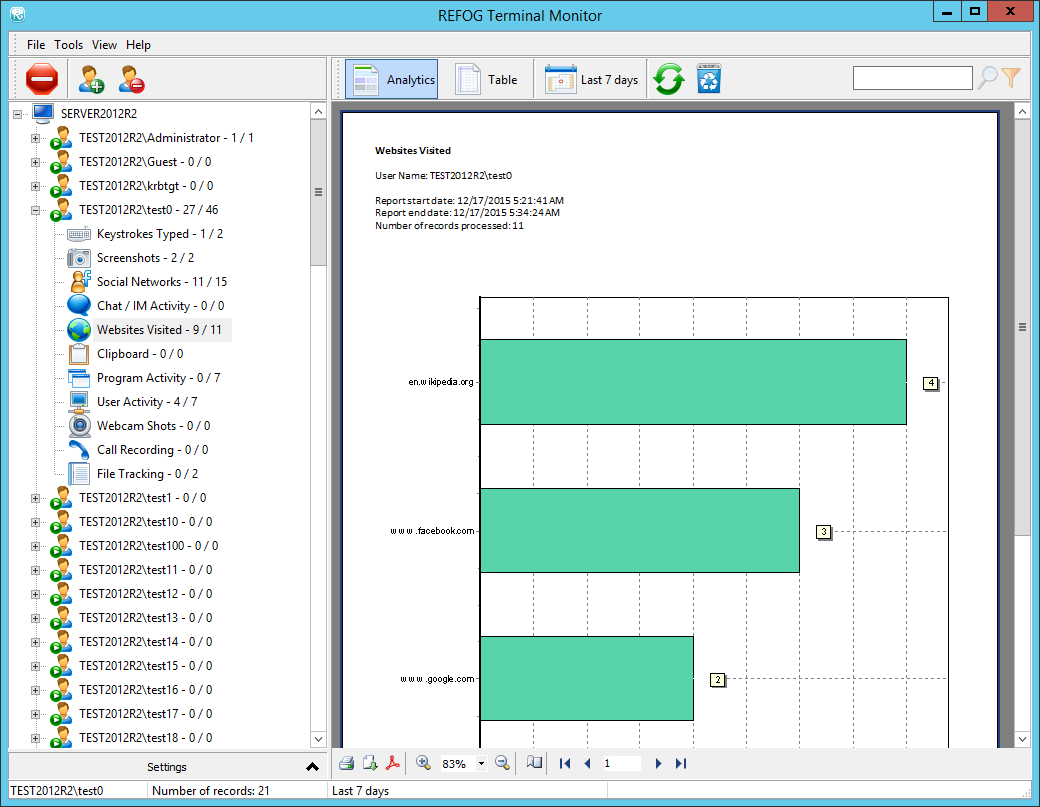
REFOG Terminal Monitor save screen captures, chat conversations and keystrokes in convenient reports. Each employee is logged and reported individually for easier access to the logs.
Centralized Server Operation
REFOG Terminal Monitor runs on your company-owned Terminal Server from a single installation point, with employees informed that their work sessions are monitored. The system maintains individual logs for each employee who logs in, captures keystrokes, logs applications they run and Web sites they visit, and makes periodic screen captures of employee's desktops to better illustrate their activities.


