
Refog Employee Monitor is employee computer monitoring software for company-owned Windows PCs on a local network. Review screenshots, keystrokes, websites, applications and file activity from a central Windows workstation, with logs stored on your own network. Use it for disclosed, consent-based monitoring: notify staff before installation and apply it only to company-owned devices you are authorized to monitor. Try free for 30 days.
See What Happens on Your Company PCs
When you need to review a workplace computer incident or understand how software is being used, a list of running programs is only part of the picture. Employee Monitor records activity that you can review by computer, Windows user and activity type. Managers can compare application and website records with screenshots before discussing a concern with an employee.
What Employee Monitor Records
| Activity | What you can review |
|---|---|
| Screenshots | Captured screen content with the application and time of the event. |
| Keystrokes | Typed text with the associated application and user. |
| Websites | Visited web addresses and their timestamps. |
| Application usage | Program activity and records of computer use. |
| Chats and social activity | Recorded conversations and screen content in supported applications. |
| File activity | Recorded file operations that can help you investigate a computer incident. |
Test the applications your team actually uses during the trial. Activity records provide evidence for a review; they do not automatically establish whether someone was productive or whether a security breach occurred.
Review Logs from One Workstation
Employee Monitor uses a Windows log viewer on your local network. Connect the monitored computers, select a user and choose the activity you want to inspect. Switch between timestamped records and activity charts, or view ongoing PC activity from your central workstation. Logs stay on your network, where your administrator controls access.
Use HTML or CSV reports to share selected findings with authorized colleagues. Decide who may access those reports and how long they should be kept before collecting employee data.
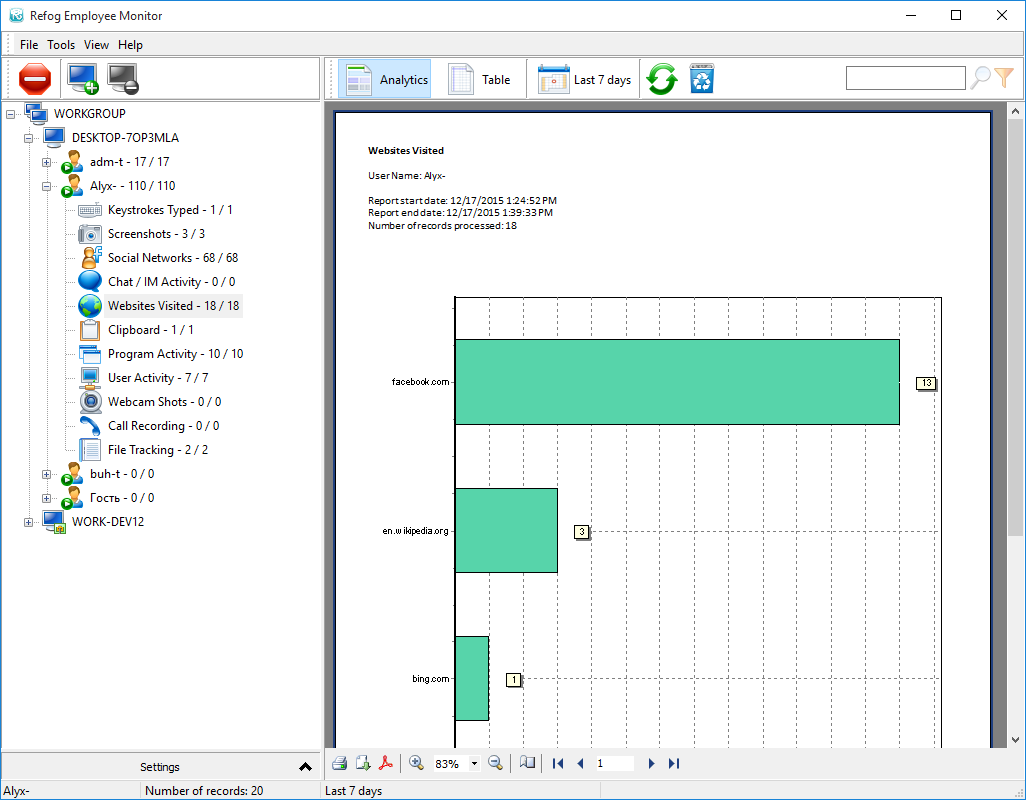
Example interface: a website activity chart for a selected Windows user. Click the image to inspect the full screenshot.
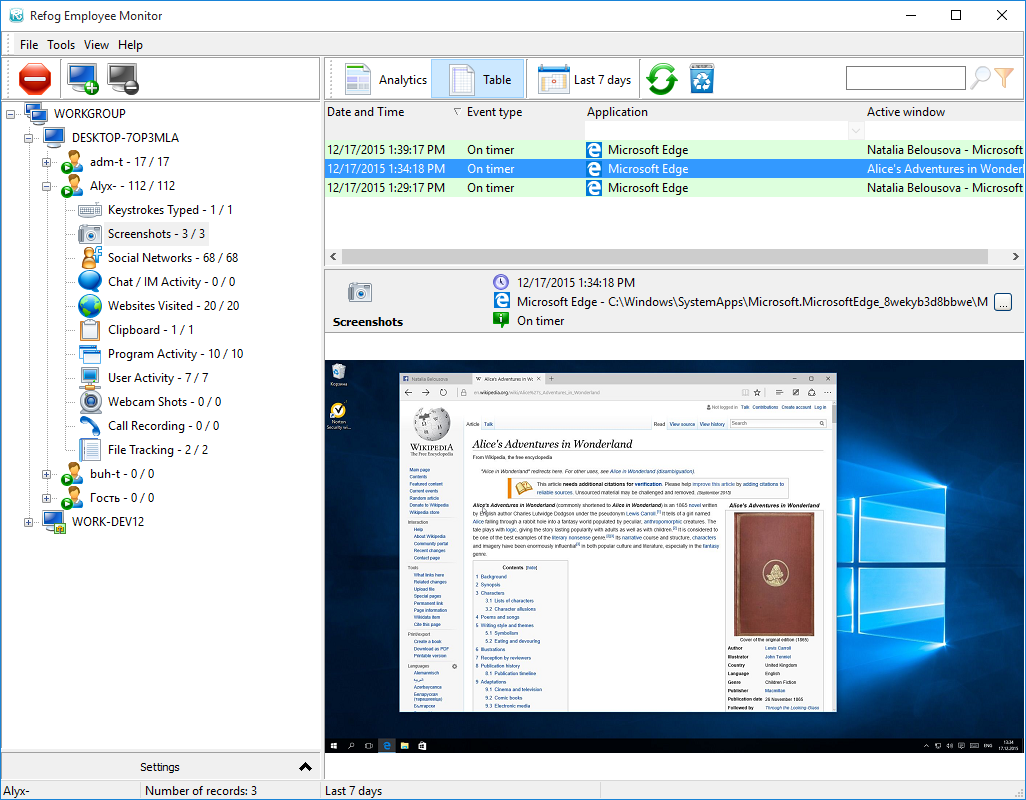
Example interface: recorded screenshots with timestamps and application details.
Set Up a Trial on Your Own Network
- Notify employees and obtain the required consent before monitoring starts. Document the purpose, data collected, access permissions and retention period.
- Sign in to your Refog account and download Employee Monitor for the 30-day free trial.
- Create the network installer from the program's File → Create an installer command. Install the MSI and its configuration files on the company PCs with administrator rights.
- Connect those computers in the log viewer. Check that screenshots, website records and application activity answer the questions you need to investigate.
Follow the installation instructions for PCs without a domain or deployment through Group Policy. Pilot the configuration on a small set of authorized PCs before rolling it out more widely.
Choose the Product for Your Setup
Employee Monitor is for Windows computers connected through your local network. For employees sharing a Windows Terminal Server or Citrix environment, see Refog Terminal Monitor, which records individual user sessions on the server.
Keep Monitoring Disclosed and Proportionate
Company ownership of a PC does not replace notice, consent or the other requirements that apply in your location. Explain monitoring to staff, limit access to authorized reviewers and collect only what is needed for the stated purpose. Review records in context with the employee rather than treating computer activity as a performance score.
Try Employee Monitor free for 30 days on your own company PCs, or contact Refog support if you need help choosing a deployment.


