
How to Set Up Parental Controls on an iPhone
Set up parental controls on an iPhone: Family Sharing, the Screen Time passcode, Content & Privacy Restrictions, app limits, the safety layer — and the gaps.

What iPhone parental controls do — and what they can't

iPhone parental controls are the free, built-in settings that let you supervise a teenager's phone — filtering content, limiting screen time, approving purchases, adding a safety filter, and seeing where the device is. On an iPhone they nearly all live in one place, Screen Time, set up through a Family Sharing child account. The work is to turn on the layers that matter, in order, and to know — honestly — where each one stops.
It helps to start with one fact that shapes everything else: an iPhone is more locked-down than an Android phone. That is genuinely useful — with no sideloading by default and no separate user profiles, there are fewer ways around the controls, and you can set most of them from your own phone — but it cuts both ways. “More locked-down” is not “locked”: a determined teenager can still erase and restore the device, reset an app's limit, or lean on tools Screen Time was never built to reach. This guide covers those gaps plainly, because a control you over-trust is worse than one you understand.
None of this is surveillance, and it works best when it is not treated as such. Think of these controls as scaffolding — visible, agreed, and gradually removed as your teen earns the room. A teenager who helped set the limits tends to keep them; one who finds them by accident goes looking for the way around. That principle, which the wider parental-controls guide sets out in full, runs through every step below.
- Filtering adult web content and setting App Store age ratings
- Daily app time limits, a Downtime schedule, and Always Allowed apps
- Approving purchases and downloads with Ask to Buy
- Blurring nudity in Messages and FaceTime, on the device
- A weekly summary of which apps and sites are used most
- Seeing where a supervised iPhone is, in Find My
- The words inside messages, DMs and in-app chats
- What an algorithm serves once your teen is in a feed
- An Android phone, a school laptop, or a friend's device
- A phone your teen has erased and set up from scratch
At a glance: the iPhone's free controls cover web and content filtering, app ratings, screen-time and Downtime limits, purchase approval, an on-device nudity filter, and device location. They cannot read the content of messages, change what a feed serves, reach a device you don't own, or by themselves outlast a phone erased and set up as new. The rest is conversation.
Start with Family Sharing and a Screen Time passcode
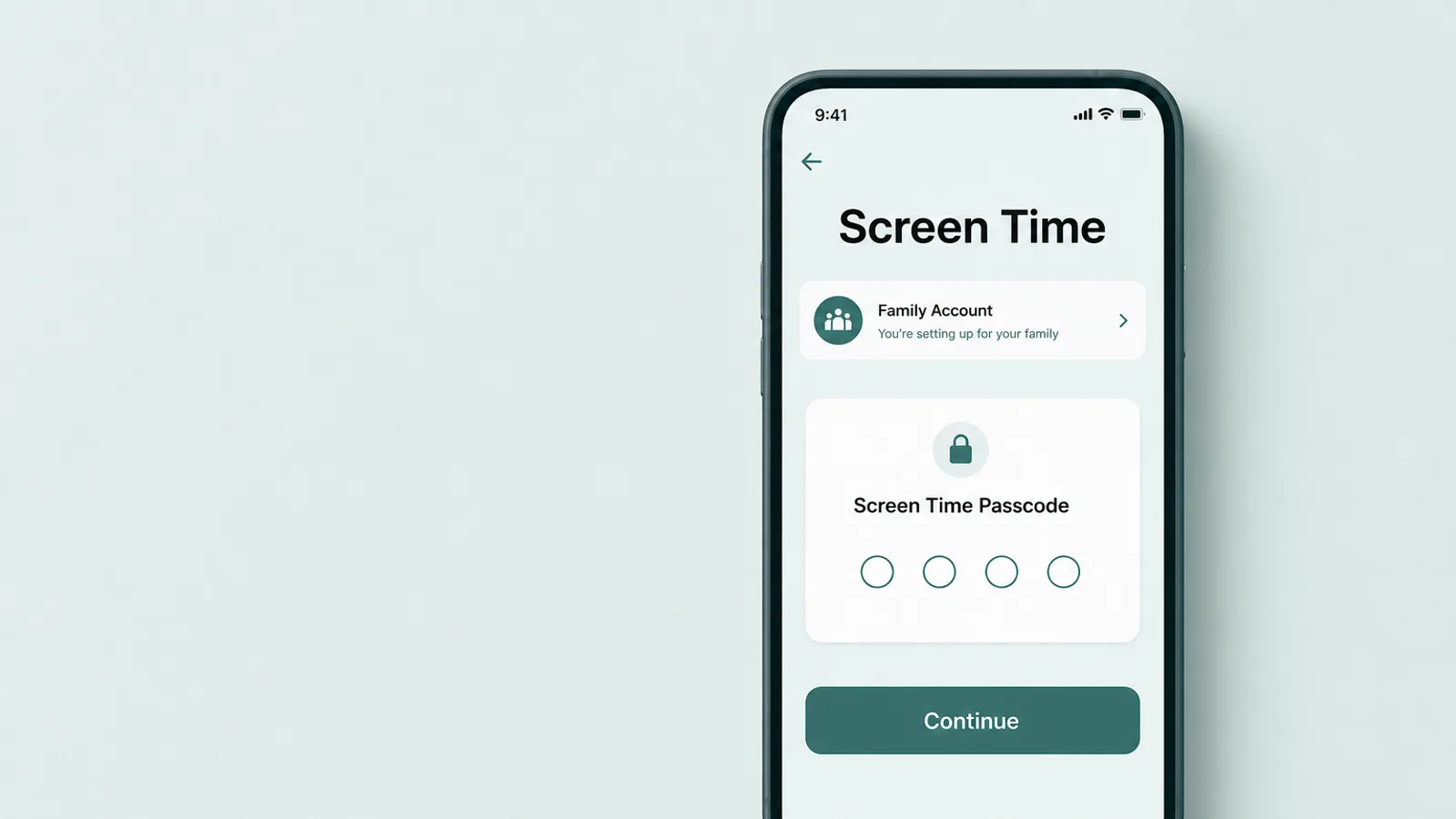
To put real parental controls on an iPhone, start with Family Sharing — the account layer that makes your teen's phone a managed child account. Once their Apple Account is in your family group, their device is one you can supervise, and here is the iPhone's quiet advantage over Android: because it is a child account, you can turn most controls on, and adjust them later, from your own iPhone. You do not have to hold their phone for every change. You can also set Screen Time up directly on your teen's device without a family group, but Family Sharing is what adds remote management, Ask to Buy and synced settings — so it is the route worth starting with.
Setup is still best done sitting beside your teenager rather than behind them. Add or create their account in Settings under your name > Family, then turn on Screen Time for them. The single most important step is to set a Screen Time passcode that is different from the device passcode — this four-digit code is what locks the controls so they can't be quietly switched off, and it is the one thing worth keeping to yourself. If you ever forget it, you can change it from your own device as the family organizer — Settings > Screen Time > your teen's name > Change Screen Time Passcode — with your Apple Account as the fallback, so there is no need to write it on a sticky note where it can be read.
One setting to turn on right away is Ask to Buy. With it on, new downloads and purchases from the App Store, iTunes or Apple Books send a request to you, and nothing new installs until you approve it from your own device (it doesn't re-prompt when your teen redownloads something they already own or an app updates). For a younger teen it is a useful brake on both spending and on which apps appear at all; for an older one you may loosen it. It is on by default for children under 13 and can be set for teens 13 to 17 — though in some states and countries it is on by default for anyone under 18 and can't be turned off.
One point clears up a common myth. iPhone controls do not switch off when your teen turns 13. A child account stays managed inside your Family Sharing group until your teen reaches the age of majority — 18 in the United States, and it can vary by region — or until you change the settings yourself. What should change at 13 is not the switch but the spirit: turning 13 is a natural moment to relax the hard blocks and move from control toward agreement, not to end the conversation.
Set Content & Privacy Restrictions
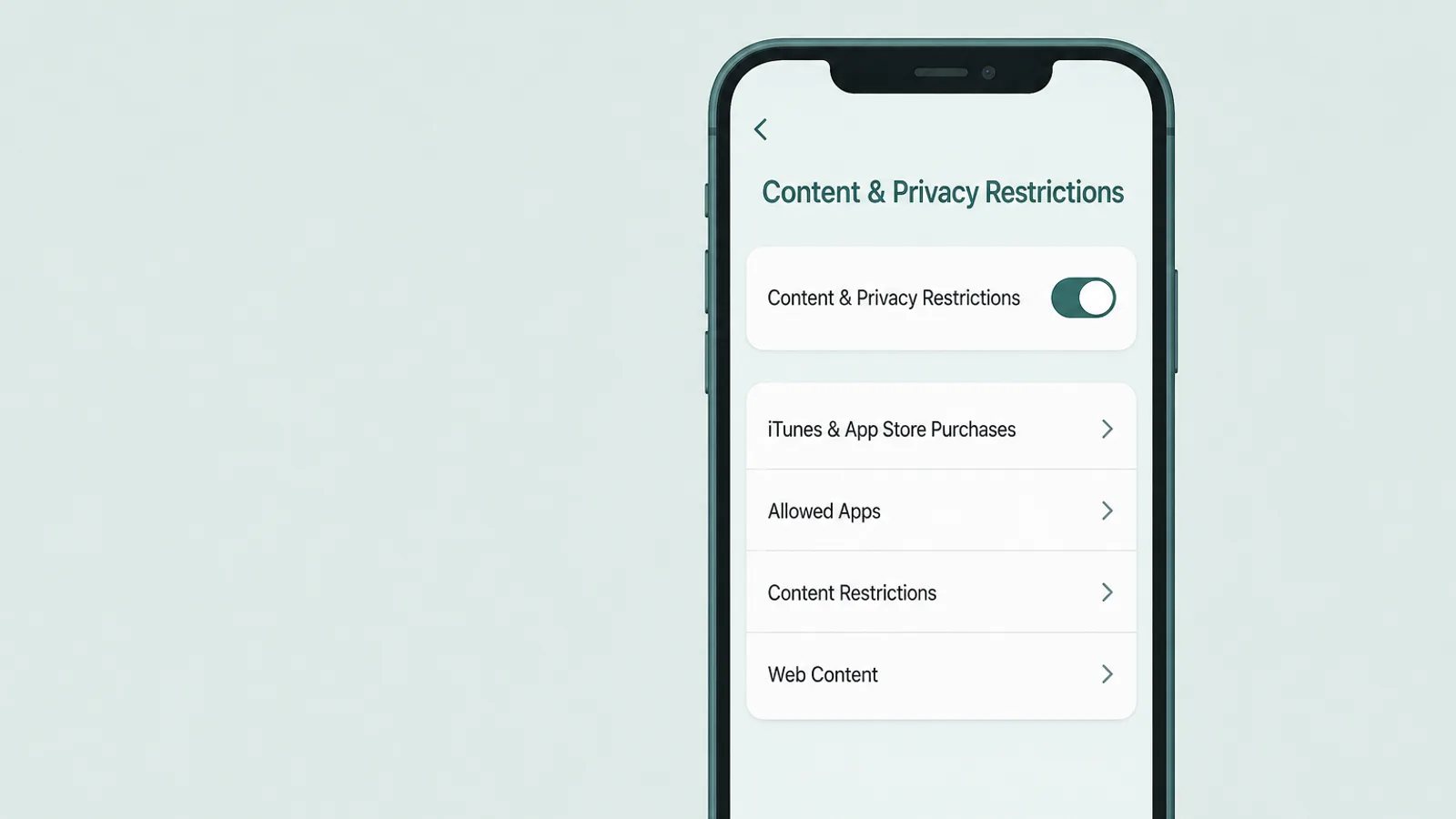
Content & Privacy Restrictions, inside Screen Time, are where the real filtering lives: web content, App Store ratings, purchases, and a lock on the settings themselves. Turn them on once, behind the Screen Time passcode, and they hold across the phone. Apple's own parental-controls overview walks each toggle; three groups matter most.
Web content
Open Content & Privacy Restrictions > App Store, Media, Web & Games > Web Content (older iOS versions place this under “Content Restrictions”; the exact wording shifts a little between versions). Switch from unrestricted browsing to Limit Adult Websites, which filters known explicit sites across Safari and other apps, or to Only Approved Websites, a tight allow-list better suited to a much younger child than a teen. Be honest with yourself about the limit here: no automatic filter catches everything, and it covers the phone's own browsing, not what your teen sees inside a social feed. It raises the floor; it is not a wall.
The App Store and purchases
In the same menu you can set the maximum age rating for apps, films, TV shows and books, and — importantly — block installing or deleting apps and block in-app purchases. Blocking app deletion is quietly one of the most useful settings on the phone: it closes the simplest way to clear an app's usage history, which we return to later. If you are in a region with alternative app stores (the EU, Brazil, Japan), restrict app marketplaces and web downloads here too, since blocking the App Store alone won't cover them. Ratings and installs work alongside Ask to Buy, so a new app has to clear both a rating and your approval.
Lock the settings themselves
The last group is the one parents skip and regret: the toggles that stop the controls from being undone. Under Content & Privacy Restrictions you can prevent changes to account settings, the passcode, location services, and more — so a teen can't turn off the very filters you just set, or quietly switch their account age. This is the difference between controls that hold and controls that last until the first quiet afternoon. Set them, and they stay set behind your Screen Time passcode.
Set the time limits: Downtime, App Limits and contacts
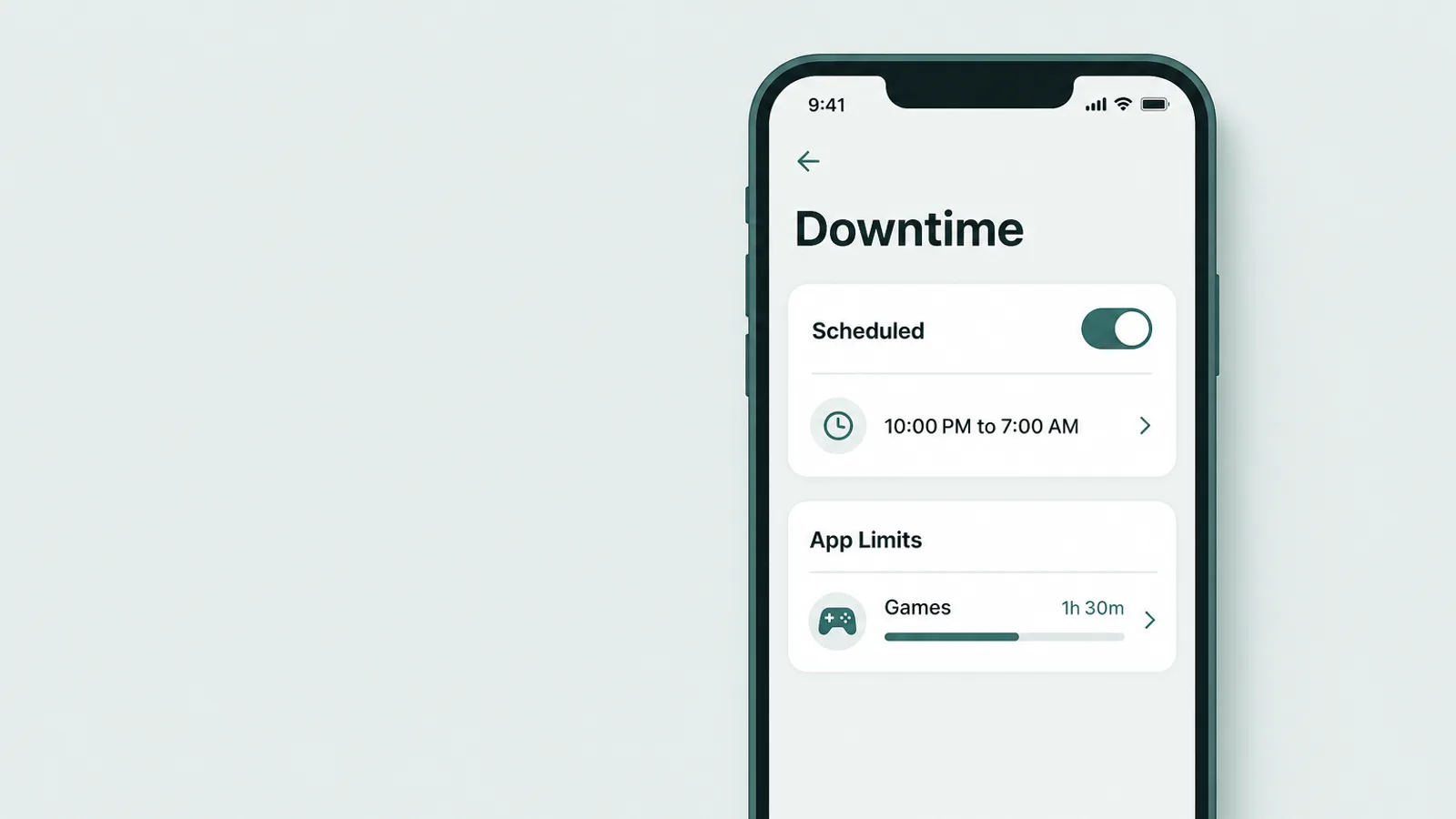
To manage when and how long the phone is used, Screen Time gives you three tools that work together — enforced on the device, so the time limits still apply when your teen is offline or away from home.
Downtime
Downtime (Settings > Screen Time > Downtime) is a schedule — a school night from 9pm to 7am, say — during which only the apps you allow and phone calls work. One setting decides whether this is a real block or just a nudge: turn on Block At Downtime beneath the schedule, or the greyed-out apps are only a dimmed reminder your teen can tap straight past. Even with it on, an allowed app stays allowed, so choose the Always Allowed list deliberately — and when a real block appears, your teen can ask for more time, which sends the request to you rather than granting it silently.
App Limits and Always Allowed
App Limits (Settings > Screen Time > App Limits) set a daily cap by category — Social, Games, Entertainment — or on a single app. By default a reached limit only warns, and your teen can tap “One More Minute” or ignore it for the day; switch on Block at End of Limit so the app actually locks until you extend it with the passcode. Pair this with the Always Allowed list just below, which is what stays reachable even during Downtime or after a limit: keep Phone, Messages and Maps there so your teen can always reach you, and think twice before adding anything else.
Communication Limits
Communication Limits (Settings > Screen Time > Communication Limits) control who your teen can call, FaceTime or message during allowed time and during Downtime — for example, limiting downtime contact to a handful of people. Because it works from your teen's contacts, it depends on those contacts being managed in iCloud, and it governs Apple's own Phone, FaceTime and Messages rather than every third-party chat app. It is most useful for a younger teen; for an older one it usually gives way to trust and a conversation about who they talk to.
Turn on the safety layer — without surveillance

The one control that protects your teen without watching them is Communication Safety. It uses on-device intelligence to detect nudity in photos and videos — across Messages, AirDrop, FaceTime and Contact Posters — and blurs the content before your child sees it, giving them a moment to stop, and resources to get help. For a teenager who might be sent, or pressured to send, an explicit image, that pause is the point.
What makes it different from monitoring is worth understanding, because it is exactly the trust question parents have. The analysis happens on the device: the detection itself doesn't send the image to Apple or tell Apple that nudity was found — the one exception is that if your child chooses to report a sender, that content is sent to Apple for review. And — unlike the covert “notify the parent” tools people imagine — you are not automatically sent every flagged photo or a report of it. It reads images, not words. It is a safety feature built into the phone, not a window into your teen's conversations — which is why it is easy to leave on with a clear conscience.
Because the photos and videos are analyzed on your child's device, Apple doesn't receive an indication that sensitive content was detected and doesn't get access to the photos or videos.
— Apple Support, About Communication Safety on your child's Apple device (September 2026)
Communication Safety is on by default for child accounts, both under 13 and for teens aged 13 to 17, so on a properly set-up family account it is usually already working — worth confirming rather than assuming, under Settings > Screen Time > Communication Safety. There is also a separate, opt-in version for any age, Sensitive Content Warning (Settings > Privacy & Security), which offers the same blur-and-warn for an adult who wants it — useful to know if you have an older teen on their own account.
A filter is not a plan, though. If a stranger's contact ever shades into grooming, or your teen is pressured into sending images or is threatened over them — sextortion — that is a moment for people, not a settings screen. The first thing to know: don't pay, don't comply, and don't send more — giving in rarely stops the threats. Then reassure your teen that it isn't their fault, keep the messages and account details as evidence (without forwarding any explicit image), block the person, use the platform's reporting tools, and in the US report to the NCMEC CyberTipline. Because none of these controls surfaces a private chat, bullying and contact from strangers stay a matter for conversation and reporting, not controls.
See where the phone is with Find My
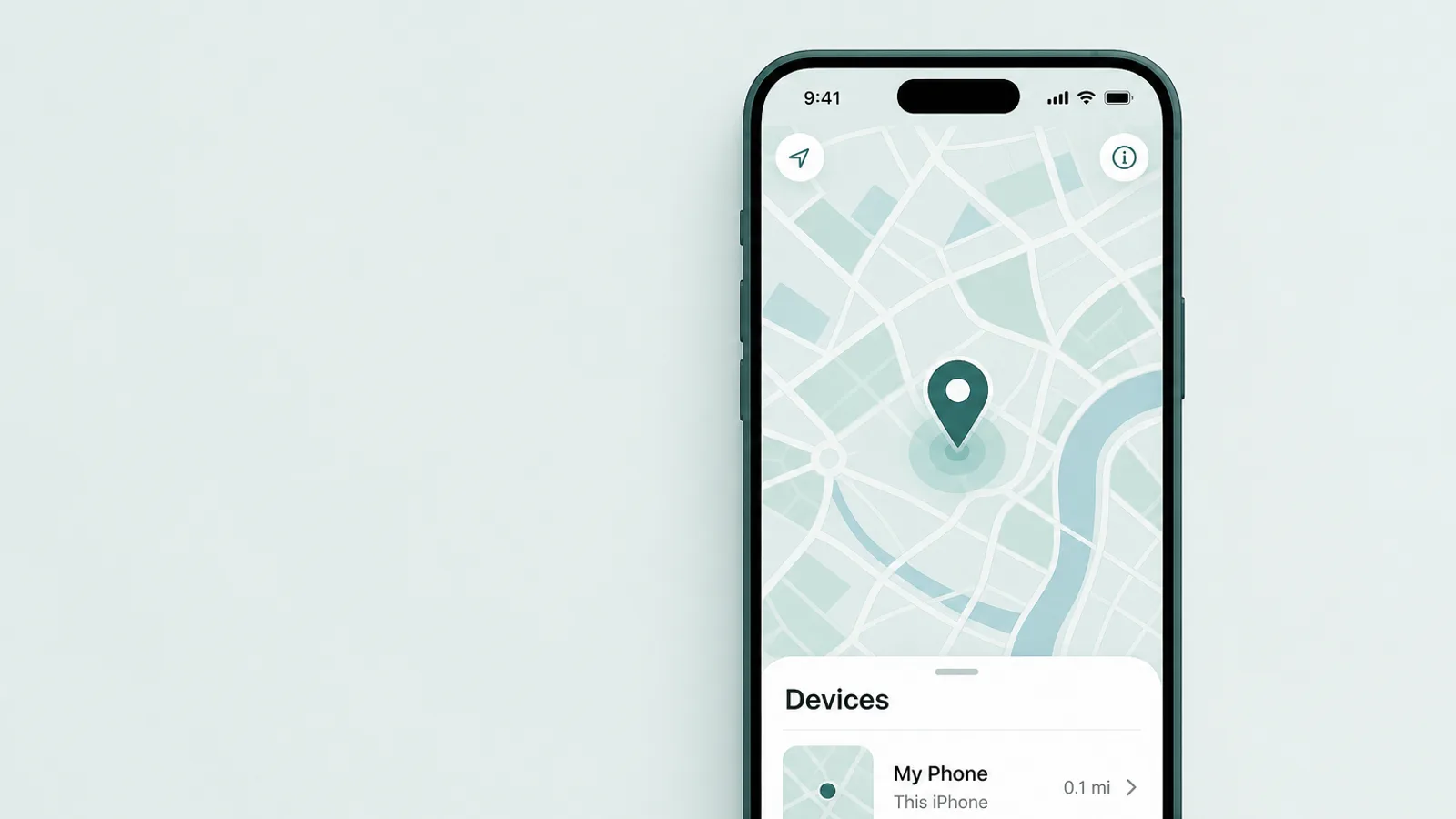
To see where your teen's iPhone is, use location sharing in Family Sharing and the Find My app. For a managed child account you can turn on Share My Location for your teen and, under Content & Privacy Restrictions, lock it so it can't be quietly switched off — best done together, on their device, rather than sprung on them. Once it's on, your teen's location appears in Find My's People tab and in Messages, and you can see the device through the day. Depending on the laws where you live, some account settings can differ for under-18s, so it is worth checking what your teen can change themselves.
Two honest notes keep this useful rather than corrosive. Location tells you where a phone is, not whether your teen is safe or who they are with — it is a logistics tool and a reassurance, not a substitute for knowing their plans. And it works best out in the open: a teen who knows location is shared, and why, treats it as a family norm; one who discovers it feels tracked, and starts leaving the phone behind. Share it as something mutual — many families share both ways — not as a one-way watch.
Where iPhone controls leak

Every iPhone control has an edge, and naming the gaps is not a counsel of despair — it is what stops you from trusting a setting that was never going to hold. Because iOS is a more closed platform than Android — no sideloading by default, no separate user profiles — the iPhone leaks in fewer places, but it still leaks, and four are worth knowing plainly. To be clear, this is about knowing the limits, not a how-to: the fix for each is a setting plus a conversation, not a game of cat-and-mouse.
- A full resetErasing the phone and setting it up as new can clear on-device limits — but signing back into the same managed child account generally re-applies them, and Find My and Activation Lock still tie the phone to that Apple Account. It's drastic and obvious, not a quiet workaround.
- Reinstalling an appA teen who can freely delete and reinstall apps can clear what an app's usage history shows. The counter: block deleting apps under Content & Privacy Restrictions, and keep iOS updated.
- A missed site or a VPNNo web filter catches every site. Apple's on-device filter still covers Safari and other apps; a VPN doesn't defeat it, but it can route around a separate home-network or DNS filter — so treat filtering as a floor, not an airtight wall.
- The words inside appsNo iPhone control reads the content of messages or in-app chats. That visibility gap is by design — it is a matter for conversation, not settings.
The first two gaps have the same simple counter you have already met: keep the Screen Time passcode private and separate, and block app deletion under Content & Privacy Restrictions. The last is not a gap to close but a fact to accept — Screen Time was never built to show you conversations, and the tools that claim to are a different, heavier decision.
The iPhone is rarely the whole household, though. Apple's controls follow your teen across their Apple devices — iPhone, iPad and Mac — but not the family's Windows PCs, and that is where a mixed household often has a blind spot. Some parents add a dedicated parental-control app on those computers, used in the open as a layer rather than a secret. It is a last layer, not a first one, and it does not monitor the iPhone itself, which the built-in controls already handle for most families. And if you are weighing an iPhone against an Android phone, our companion guide to parental controls on Android lays out how the same job differs on a more open platform.
Match the controls to the age — and set them together

The single most important setting isn't a setting at all: match the controls to your teenager's age, and put them in place together. A configuration that fits a thirteen-year-old will feel like an insult to a seventeen-year-old, and a teen who feels the controls never noticed them growing up will, reasonably, stop respecting them.
The shape of it is a gradual handover. For a younger teen, lean on Ask to Buy, content filters, and a firm Downtime schedule. Through the mid-teens, relax the hard blocks and keep the few that guard real harm or runaway cost. By the later teens, most controls should be retired or handed over as tools your teen chooses to keep. The pillar guide sets out that age-by-age plan in detail, and groups like Common Sense Media publish age-appropriate guidance worth reading alongside it.
Have the conversation before you change a setting, and keep it short and free of accusation. It can be almost this plain: “I'm turning on a few things on your phone — a website filter, a wind-down after 9, and location sharing that works both ways. I'll also see a weekly summary of which apps you use most — not what you say in them. Here's why, and here's what would let us relax them: you keep me in the loop, and we look at this again in a couple of months.” That framing names the controls as temporary, ties loosening them to your teen's own conduct, and invites the disagreement you want out loud rather than hidden. Expect some pushback and treat it as a good sign — a teenager arguing about a boundary is engaging with it, not routing around it.
It also helps to remember what the experts are actually saying now. Recent American Academy of Pediatrics guidance has moved away from a single magic screen-time number toward the quality and context of what teens do online and a family plan you build together — and with roughly four-in-ten US teens telling Pew Research Center they are online almost constantly, that plan matters more than any one toggle.
And plan, from the first day, to take the scaffolding down. The aim of every control in this guide is not a permanently monitored teenager but a young adult who has practised good judgment while the cost of a mistake was still small. Set thoughtfully, reviewed together, and loosened on a schedule that tracks the trust your teen earns, the iPhone's controls do their real job — which is to make themselves, eventually, unnecessary.
Frequently asked questions
How do I set up parental controls on my child's iPhone?
Start with Family Sharing: add your teen's Apple Account to your family group so their iPhone is a managed child account. Then turn on Screen Time and set a Screen Time passcode separate from the device passcode. From there you set Content & Privacy Restrictions, Downtime and App Limits, and confirm the safety features. Because it is a child account, you can do and adjust most of this from your own iPhone, ideally sitting beside your teen.
Are parental controls on the iPhone free?
Yes. Every core control is built into iOS at no cost: Family Sharing, Screen Time, Content & Privacy Restrictions, Downtime, App Limits, Ask to Buy, Communication Safety and Find My are all free. You only pay if you choose to add a separate third-party parental-control app on top. For most families the built-in, free controls — set thoughtfully and reviewed together — cover the great majority of what they actually need.
Can my teen bypass Screen Time on an iPhone?
Some of it, yes — it is honest to expect it. iPhone is more locked-down than Android, but no control is a wall: setting the phone up as new can clear on-device limits, and a teen who can freely delete and reinstall apps can clear what an app's usage history shows. That is why blocking app deletion, keeping the Screen Time passcode private, keeping iOS updated, and using Find My all matter. The realistic goal is to close the obvious gaps, then rely on an open agreement rather than a perfect lock.
Can iPhone parental controls read my teen's text messages?
No. Screen Time does not show the content of iMessages, texts, DMs or in-app chats, and it has no screen recording. It controls who your teen can contact and when, and how long apps are used — not what is said inside them. Even Communication Safety, the nudity filter, analyzes images on the device rather than sending them to Apple or to you (unless your teen chooses to report a sender). If you are worried about bullying or a stranger's contact, that is a gap to close with conversation, not a settings screen.
What is the difference between Family Sharing and Screen Time?
Family Sharing is the account layer — the family group that makes your teen's iPhone a managed child account, enables Ask to Buy, and lets you share location. Screen Time is the control layer that sits on top of it: the actual settings for web filtering, app ratings, Downtime, App Limits and the safety features. Family Sharing is where most parents start; Screen Time is where you do the day-to-day work. You can also configure Screen Time directly on your teen's device, but Family Sharing is what adds remote management, Ask to Buy and synced settings.
At what age do iPhone parental controls turn off?
There is no birthday when they switch off by themselves. A child account stays managed inside your Family Sharing group until your teen reaches the age of majority — 18 in the United States, and it can vary by region — or until you change the settings yourself. Turning 13 does not end the controls. What should change with age is not the switch but the spirit: from control toward agreement, loosening the limits as your teen grows.
What is Communication Safety, and is it spying on my child?
No, it isn't spying. Communication Safety is an on-device filter that detects and blurs nudity in photos and videos across Messages, AirDrop and FaceTime, giving your child a moment to pause. Because it runs on the device, the detection doesn't send Apple the image or flag it to you automatically — only if your child chooses to report a sender is that content shared with Apple. It reads images, not words. It is protection built into the phone, not a window into your teen's conversations.