
Google Family Link: A Complete Setup Guide for Parents
Google Family Link is Google’s free parental-controls app for Android and Chromebooks. A step-by-step setup guide for parents — what it does, and what it can’t.

What Family Link is — and isn’t
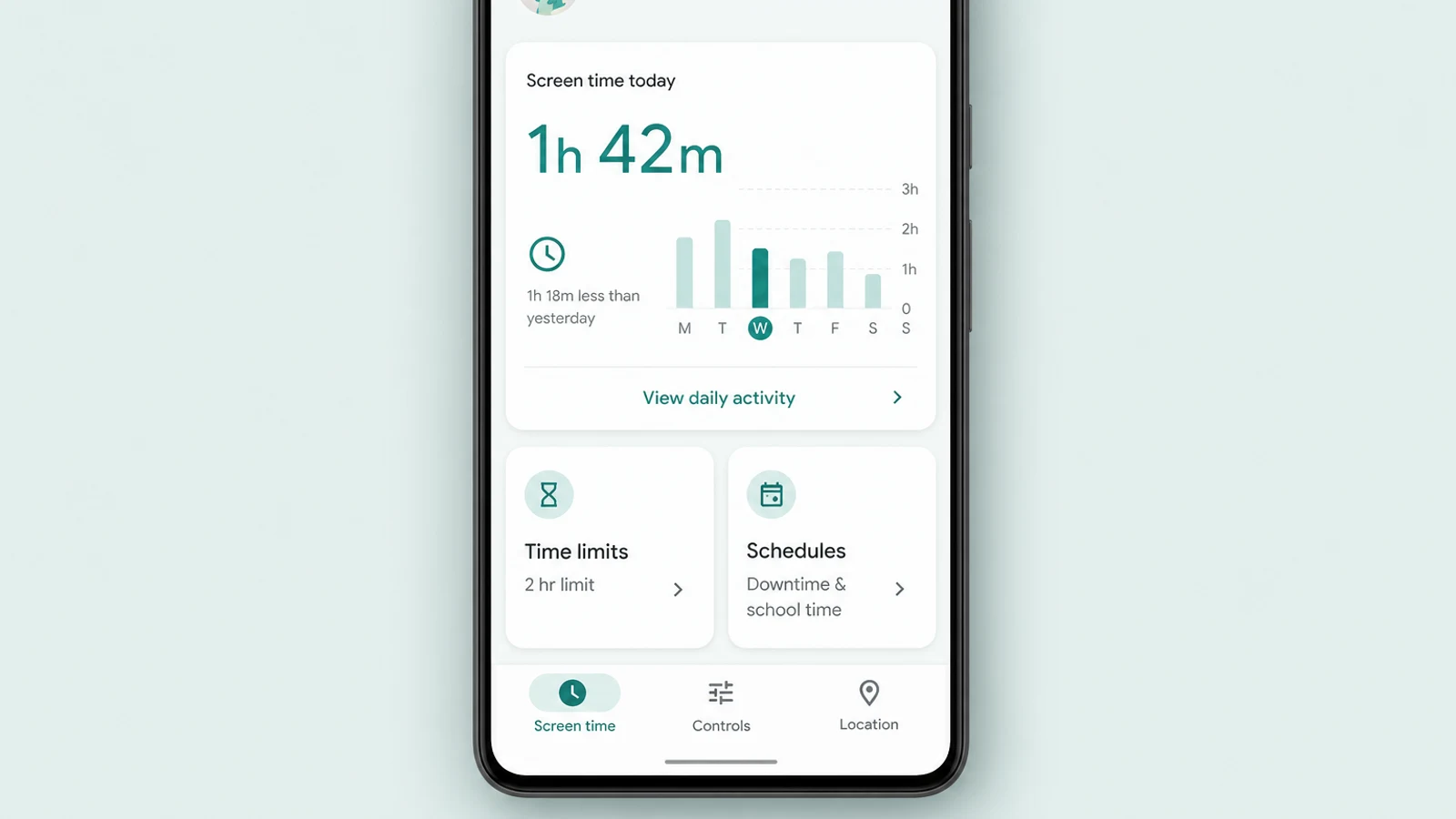
Most parents come to Family Link with a single worried question — “how do I get some control over this phone?” — and a vague fear that the answer is something close to spying. It helps to start by clearing that up. Google Family Link is Google’s free parental-controls service: an app on your own phone — with a web dashboard at familylink.google.com for some of it — that lets you create or supervise your child’s Google Account, approve the apps they install, filter some of what they see, set limits on screen time, and locate their device. It is the Google corner of the built-in operating-system controls every phone already ships with — gathered into one place you can reach from anywhere.
Just as important is what it is not. Family Link does not let you read your teenager’s text messages, direct messages, or the chats inside their apps, and it does not record their screen. It is a set of account and device controls, not a surveillance feed. And it has one hard boundary worth knowing before you spend any time on it: its real powers work on Android phones, Android tablets, and Chromebooks — not on an iPhone you hand your teen. More on that below.
- Approving or blocking the apps your teen installs
- Daily screen-time limits and a bedtime schedule
- Content filters on Google Play, Search and Chrome
- Seeing where a supervised Android device is
- Managing the Google Account itself
- The content of messages, DMs, and in-app chats
- What the algorithm serves inside a social app
- An iPhone, a games console, or a school laptop
- What your teen does signed in to a second, unsupervised account
Because it is built in and costs nothing, Family Link is the natural place to begin before you consider paying for anything. For most families the free, native controls — set thoughtfully — cover the great majority of what they need, and a dedicated parental-control app only earns its place if a real gap remains once you have set this up properly.
Setting it up: accounts and devices
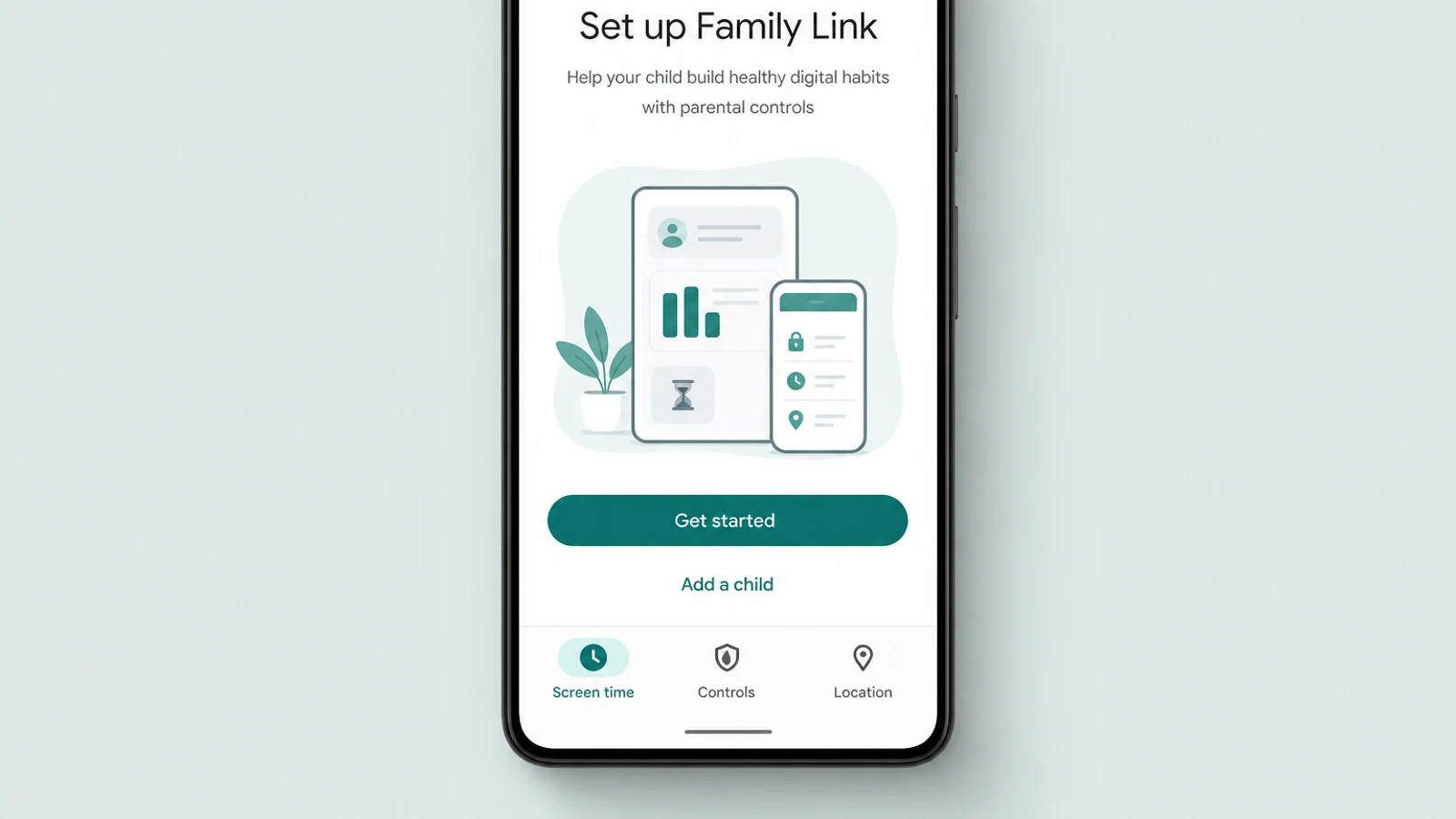
Before you start, it is worth gathering what setup actually requires, because two of the requirements trip people up. On your side, you need your own Google Account, you need to be 18 or older (or the adult age in your country), and — this is the one people miss — you must live in the same country as your child. You install the Family Link app from Google Play on Android, or from the App Store on an iPhone or iPad; you can also manage some settings at familylink.google.com in a browser, but for device location and remote screen-time and app controls you need the app, not just the web dashboard. On your teen’s side, they need a Google Account and a device Family Link can actually supervise.
iPhones, iPads, and computers other than Chromebooks can’t be supervised with Family Link.
— Google Family Link Help, “Get started with Family Link”
There are two ways in, and which one you use depends on your teenager’s age. You can create a brand-new Google Account for a younger child, or you can add supervision to the account your teen already has. For a 13-to-17-year-old who has used a phone for years, you will almost always do the second — and that path requires your teen’s agreement, given on their own device. You cannot quietly attach supervision to a teenager’s existing account from across the house; they have to say yes.
- Install Family Link and sign in as yourself. On your phone, open the app and sign in with your own Google Account. Tap to add a child and choose Get started.
- Create an account, or get ready to add supervision. For a younger child, create a new account — a child under 13 (or the applicable age in your country) needs verifiable parental consent, commonly a small temporary authorization placed on your card to confirm an adult is consenting; you are not charged a fee, and the hold is usually released within 48 hours. For a teen who already has a Google Account there is nothing to create: you add supervision directly on their device in the next step — there is no “email them a request” shortcut.
- Add supervision on your teen’s device. On your teen’s own Android phone, tablet, or Chromebook, start supervision in Settings — on Android, Settings > Google > All services > Kids & Family > Parental controls; on a Chromebook, Settings > Accounts > Parental Controls (Google’s setup steps). Your teen has to be present and agree, and you sign in with your parent account to link the two.
- Grant permissions and set your first controls. Approve the permissions Family Link asks for on your teen’s device, then choose your starting settings. Every one of them can be changed later, so you don’t have to get them perfect now.
The whole process takes around fifteen minutes, and the single best decision you can make is to do it sitting next to your teenager rather than behind their back. We come back to why in doing it with your teen, but the short version is that a setup your teen watched and understood survives; one they discover later rarely does.
Approving apps and filtering content
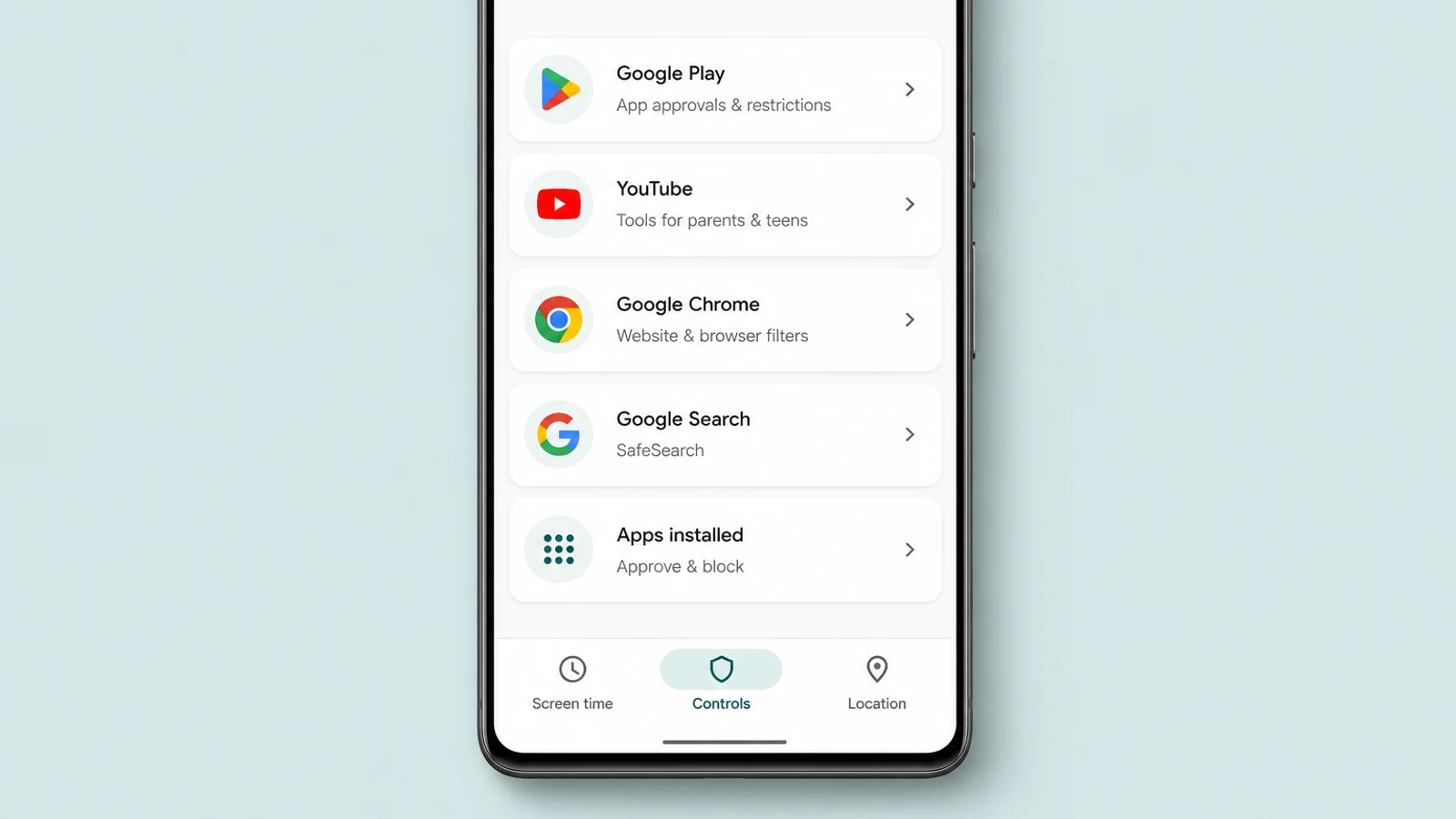
Once the link is live, the first cluster of settings most parents reach for is about apps and content. Family Link lets you require your approval before your teen installs anything new from the Google Play Store, lets you set maturity ratings so age-inappropriate titles don’t appear, and lets you block an app that is already installed if it becomes a problem. You can also see which apps they have and how much each is used.
Alongside app control sit Google’s content filters. None of them is a perfect wall, but together they raise the floor across the services teenagers use most:
- Google PlayRequire your approval for new downloads and purchases, and set maturity ratings for apps, games, films, and books.
- SearchKeep SafeSearch on to filter explicit results out of Google Search — for supervised accounts it is on and locked by default.
- Chrome and the webOn Android and Chromebook, try to block explicit sites, or allow and block specific ones. Note that other browsers are a weaker spot.
- YouTubeFor an under-13 child you can pick a YouTube content level. For a 13–17 teen there is no parental content setting — supervision gives activity insights and wellbeing tools, and YouTube only auto-blocks age-restricted videos.
It is worth being clear-eyed about the limits even here, because over-trusting the filters is how parents get surprised. On YouTube in particular, there are no parental content levels for teens — those exist only for under-13s — so for a 13–17-year-old, supervision adds insight and wellbeing tools rather than a content wall. Family Link’s web filtering is built around Chrome; a different browser can slip past it, and Google itself warns the filters are not perfect. And no filter reaches inside a social app — it can block or time-limit TikTok or Instagram, but it cannot change what the feed serves once your teen is in it. That deeper problem of what the algorithm delivers is the subject of the pillar on harmful content and the feed.
Screen time, Downtime and app limits
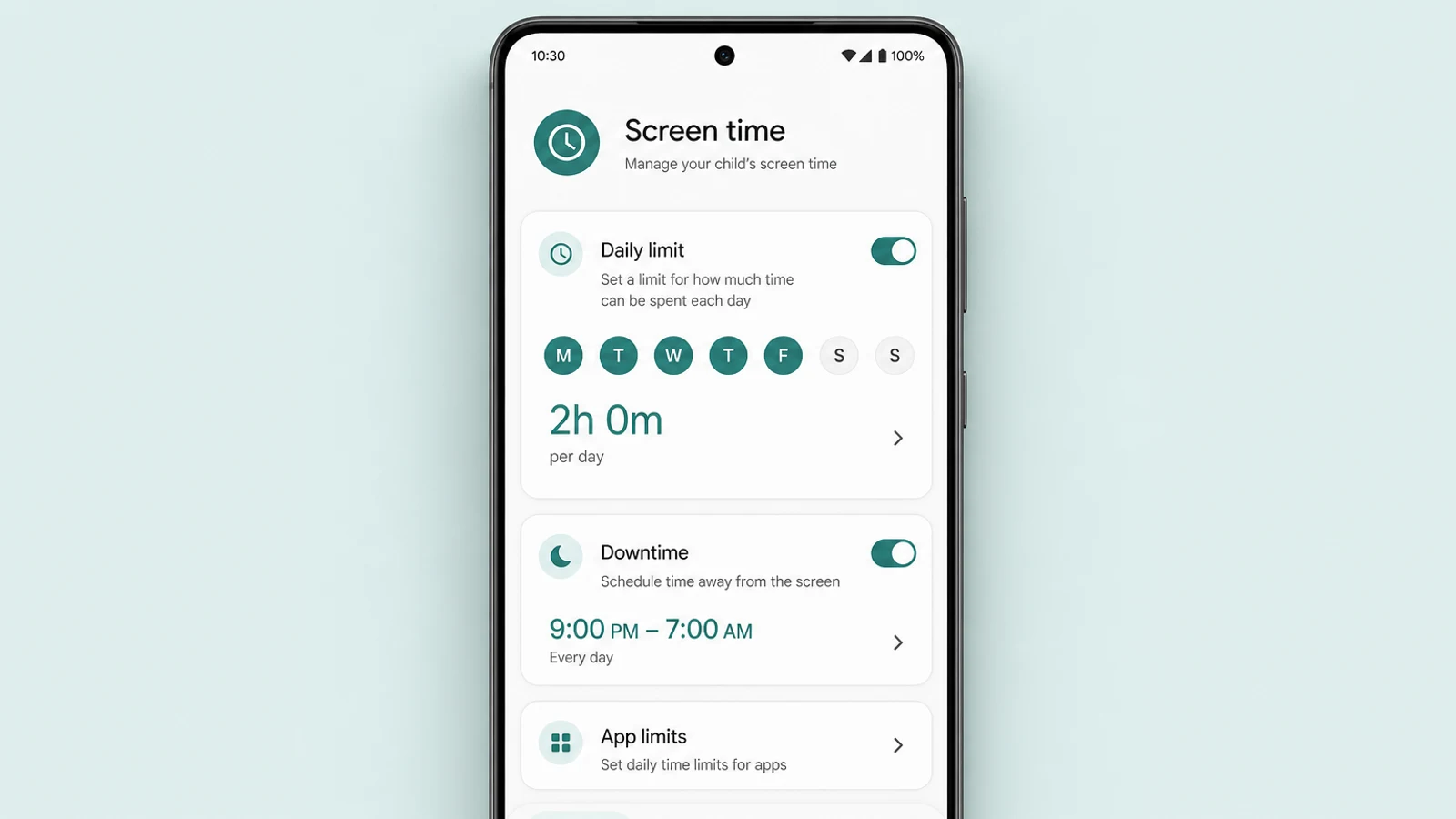
The feature most parents actually open Family Link for is screen time, and it gives you three distinct tools rather than one blunt switch. Used together they let you shape when and how the phone is used, not just how long.
- 1A daily limitA total amount of screen time per day — and you can set a different number for each day of the week, so school nights and weekends differ. It applies to each device on its own, not as one shared pool.
- 2DowntimeA bedtime schedule that locks the device overnight. Calls still come through, so the phone stays reachable in a genuine emergency.
- 3App limitsA separate time budget for individual apps — useful when one game or app is the real pressure point, not the phone as a whole.
Here the technology is the easy part; the relationship is the hard part. A limit your teenager had no say in becomes something to resent and route around, while a number you agreed together tends to hold. That is less a Family Link setting than a parenting habit, and it is exactly what the pillar’s age-by-age approach is built around — fewer, firmer limits for a younger teen, loosened deliberately as they earn the room.
Location and finding the device
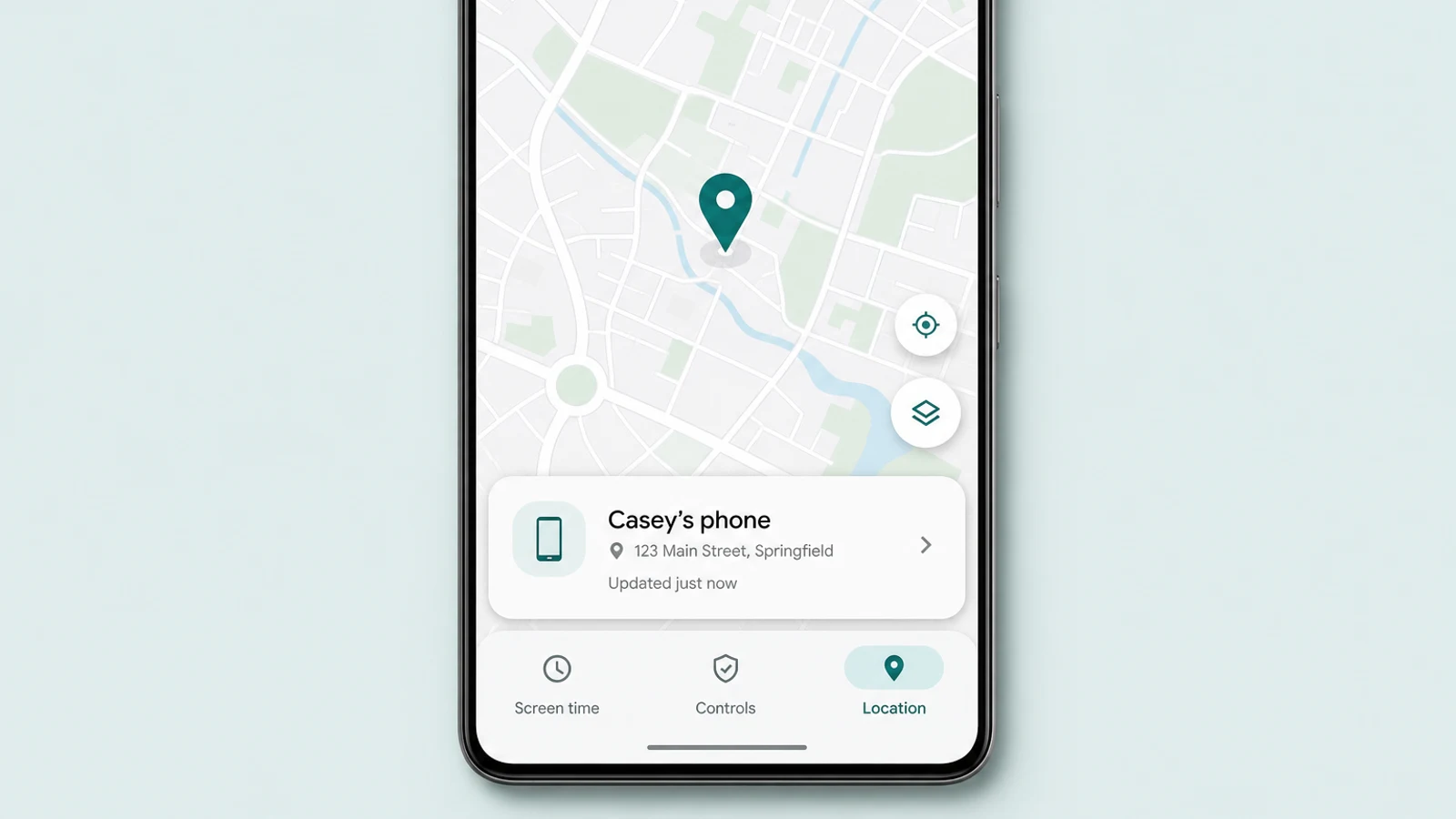
Family Link can show you where your teen’s supervised Android device is, on a map, provided the device is switched on, connected to the internet, and has location turned on. It is genuinely useful for the ordinary worries — a teen who hasn’t arrived, a phone left behind somewhere — and you can even set alerts for when the device arrives at or leaves a saved place. It is worth understanding for what it is: a view of the phone’s last known place, not a live leash. A flat battery, no signal, or a phone left at a friend’s house all defeat it, and none of those means anything is wrong.
The one rule that matters with location is openness. Tell your teenager it is on and why. A teenager who knows the phone can be located experiences it as a safety net; a teenager who discovers it was on secretly experiences it as a betrayal, and the cost to trust usually outweighs anything the feature gave you. The same logic runs through your teen’s wider privacy and location footprint, and through the transparent-monitoring principle the pillar sets out.
A teen is not a small child

Family Link was built to cover a huge age range, from a six-year-old’s first tablet to a seventeen-year-old’s phone, and the single most common mistake is to apply a small child’s lockdown to a teenager. The settings that protect an eight-year-old will, on a fifteen-year-old, read as distrust — and a teen who feels infantilised is a teen who starts looking for the way around. The skill is matching the controls to the age.
- Approval required for every app and purchase
- A tight daily limit and an early bedtime
- Filters on and browsing kept deliberately narrow
- Most defaults left exactly as Google sets them
- Approve the categories that matter, not every single app
- A screen-time limit you agreed together
- Filters on, but with room to research and grow up
- Settings reviewed and loosened as trust is earned
There is also a fact about teenagers and Google Accounts that surprises many parents — though not in the way it is often reported. Turning 13 (in the US; higher in some countries) lets your teen manage their own Google Account, but it does not let them switch supervision off on their own: under Google’s current rules a child under 18 needs a parent’s approval to stop supervision, and you can end it at any time. What that age really changes is the spirit of the thing. You can keep supervision switched on — but a teenager who wants it gone and is simply overruled will resent it or route around it, so from the early teens onward supervision works best as something you do with their agreement rather than impose — which is the whole premise of the pillar’s age-by-age framing.
What Family Link can’t do

A setup guide that only lists features sets parents up to be blindsided, so it is worth naming the gaps plainly. Family Link is a good tool with real edges, and the most dangerous mistake is to assume that because it is installed, the problem is solved.
- Messages and chatsIt does not show the content of texts, DMs, or in-app chats. Family Link is not a message reader, and it will not surface bullying or a stranger’s approach.
- Inside the feedIt can block or time-limit an app, but it cannot filter what the algorithm serves once your teen is inside it.
- Other devicesAn iPhone, a games console, a school laptop, a friend’s phone — none of these is covered by your teen’s Family Link setup.
- A determined workaroundA second or school Google Account, or a different browser, can sidestep parts of it — sometimes with a trail you can see, sometimes not.
The blind spot that catches families hardest is the first one. Because Family Link never shows message content, the place where most of the real harm to teenagers happens — private chats, group threads, DMs — is exactly where it is silent. That is by design, and it is why cyberbullying and online harassment have to be met with conversation and platform reporting tools, not with a controls app. If, after setting Family Link up well, a genuine gap remains, the pillar’s guide to choosing a dedicated app is the honest next step — but it really is a last layer, not a first one.
Doing it with your teen — and stepping back

Everything above is the easy half. The half that decides whether Family Link helps or backfires is how you introduce it. For a younger child, controls are simply part of the furniture. For a teenager, they are a statement about how much you trust them — and the way to keep that statement a kind one is to set the controls up openly, explain what each does and what it doesn’t, and make clear that this is about safety, not suspicion. A teen who helped configure their own limits is far more likely to keep them than one who found out by accident — and, as we saw, although you remain the one who can stop supervision, a teenager who resents it will route around it or tune it out, so their buy-in is not optional.
And from the first day, plan to remove it. Parental controls are scaffolding, not a permanent fixture: the entire point is to come down, piece by piece, as your teenager grows into the judgment to manage themselves. By the later teen years most of these settings should be easing off, so that a young adult leaves home able to self-regulate — not suddenly unsupervised for the first time at eighteen. The pillar covers that handover in detail in when and how to step back.
Family Link, set thoughtfully on the right device and loosened over time, is one of the most useful free tools a parent of a teenager has. But it was never meant to do the part that matters most. The lasting protection is a teenager who believes they can bring you a problem without losing their phone — and no setting in any app can install that. It comes from the conversations the controls are only there to support.
Frequently asked questions
Is Google Family Link free?
Yes. Family Link is a free app from Google with no subscription or in-app purchase to unlock its parental-controls features — app approval, screen-time limits, content filters, and device location are all included at no cost. You need a Google Account (also free) for yourself and one for your child. The only thing you may see is a small temporary authorization placed on your card — not a fee — when you create a brand-new account for a child under 13, used only to verify that an adult is giving consent; the hold is typically released within 48 hours.
Does Google Family Link work on an iPhone?
Partly. A parent can run the Family Link app on an iPhone or iPad to manage things. But a child’s iPhone or iPad cannot be supervised with Family Link — Google’s help center is explicit that iPhones, iPads, and computers other than Chromebooks can’t be supervised. On a teen’s iPhone, only some Google-account settings — such as YouTube and SafeSearch — carry over inside Google’s own apps when your teen is signed in; Family Link cannot set device-wide screen-time limits, block apps, or filter the whole web on the device. For an iPhone you hand your teen, Apple’s built-in Screen Time is the equivalent tool.
Can my teen turn off Family Link?
Not on their own. Under Google’s current rules, a child under 18 needs a parent’s approval to stop supervision — you can end it at any time, but your teen cannot remove it unilaterally. Turning 13 (in the US; higher in some countries) lets them manage their own Google Account, but it is not an off-switch for supervision, and you are both notified whenever supervision is stopped. A factory reset is no shortcut either: supervision is tied to the account and reattaches the moment your teen signs back in, and Factory Reset Protection requires the original account to set the device up again. The honest takeaway is that the real question is not whether a teen can flip a switch — they can’t — but whether you are supervising with their buy-in, because a teenager who wants out and is simply overruled is a conversation to have, not a setting to rely on.
At what age does Family Link supervision end?
There is no birthday on which it switches off by itself — and, contrary to a widely repeated belief, it does not simply become the teen’s choice at 13. Under Google’s current rules, supervision continues until a parent stops it, and a child under 18 needs a parent’s approval to stop it. What changes at 13 (or the applicable age in your country) is that your teen can manage their own Google Account; what does not change is that you remain the one who can end supervision, at any time, with both of you notified when it stops. So in practice it can run through the whole of the teen years if you choose — but the spirit of it should still shift from control toward agreement as your teen grows.
Can Family Link read my teen’s text messages?
No. Family Link does not show you the content of text messages, direct messages, or chats inside apps, and it has no screen-recording feature; its activity reports show only how much time your teen spends in each app, not what happens inside it. It is a set of account and device controls — what apps can be installed, how long the device is used, what Google services filter — not a message-reading tool. If you are worried about bullying or contact from a stranger in your teen’s chats, Family Link will not surface it; that is a gap to close with conversation and platform-level reporting tools, not with this app.
Does Google Family Link track location?
It can show you where your teen’s supervised Android device is, on a map, as long as the device is switched on, connected to the internet, and has location turned on. It is a way to see the phone’s last known place, not a live tracking leash, and it can be defeated simply by a flat battery or a phone left at a friend’s house. The most important rule is to tell your teen that location is on. Quietly tracking a teenager, if they discover it, tends to cost more trust than the feature is worth.