
How to Find Hidden Apps on Your Teen's iPhone
Find hidden apps on your teen's iPhone: the built-in screens that surface almost any installed app, how to spot a vault or secret-calculator app, and what to do next.
Three screens that reveal almost everything
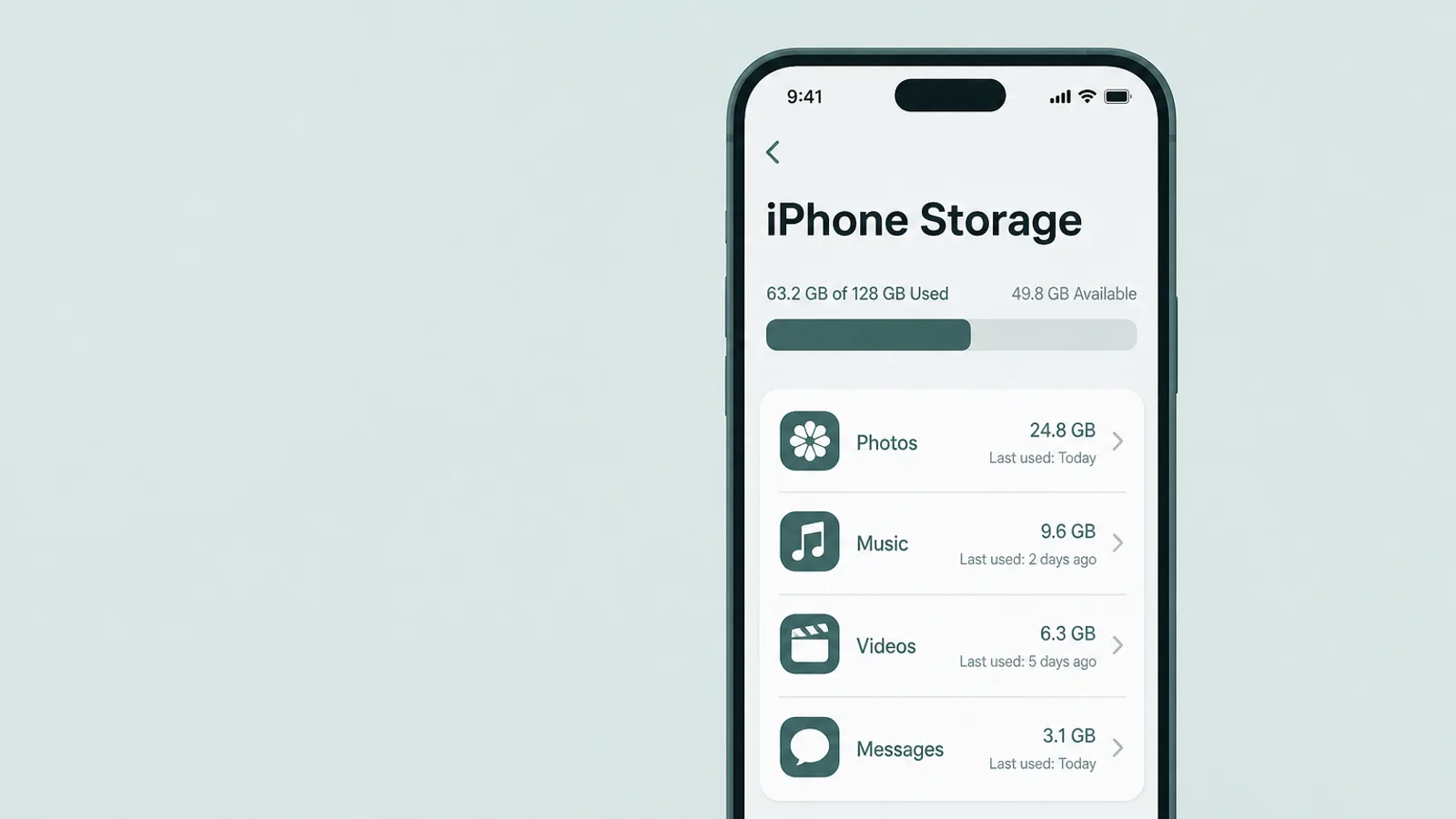
To find what's installed regardless of icon tricks, three built-in screens do most of the work, and none of them requires an extra app. Treat them as cross-checks rather than one magic list — each has a blind spot the others cover — and on iOS 18 or later add the direct check, Settings > Apps > Hidden Apps, covered in the next section. Run them in order and you'll have a complete-enough picture in about ten minutes; no unauthenticated sweep is perfectly airtight, which is exactly why you check more than one.
1. Settings > General > iPhone Storage
Start here for the broad list. iPhone Storage shows the apps installed on the phone — with each one's size and, when you tap in, the date it was last used — whether or not the icon appears on a Home Screen, in a folder, or on a hidden page. Scroll the whole list slowly. An app you don't recognize, or a second copy of a utility you thought there was only one of, is exactly what you are looking for. (An app deliberately moved into the iOS 18 Hidden folder may not show its name here until you check the Hidden Apps list itself — so pair this with the next section.)
2. Settings > Screen Time > See All App & Website Activity
Open Screen Time and tap See All App & Website Activity. This report lists apps by the time actually spent in them, grouped into categories, so an app whose icon is hidden still shows its name here the moment it's been used. If your teen's device is set up as a child account in Family Sharing with Screen Time sharing on, you can read this from your own phone. Two honest limits: it isn't retroactive — Screen Time only reports activity from after it was switched on, so if it was off, turn it on (behind a passcode) for future visibility rather than expecting earlier use to appear — and an app that was installed but never opened logs no time, so it can be missing here. Either way it's one of several checks, not the only one.
3. The App Store download history
Open the App Store and tap the account photo at the top. Depending on your iOS version this opens Apps or Apps & Purchase History. The full Your Apps list is the useful one here — it holds the App Store apps on the signed-in Apple Account, including ones still installed but hidden (Apple Arcade games are an exception: they show in the separate Apple Games app, not here) — while the Not on This iPhone (newer iOS: “Not on this device”) tab narrows it to apps on the account that aren't installed right now. Read that tab as a set of leads, not proof: an entry means the account once acquired the app, not that it was necessarily installed on — or deleted from — this particular iPhone (it could have been for another device). To check your teen's own account rather than the one you're signed into, you need Purchase Sharing switched on in Family Sharing; if it's off, do this check openly on their device instead. Two limits to know: a determined teen can hide items from this list, and it only covers a single Apple ID.
The everyday hiding tricks, and how to undo them
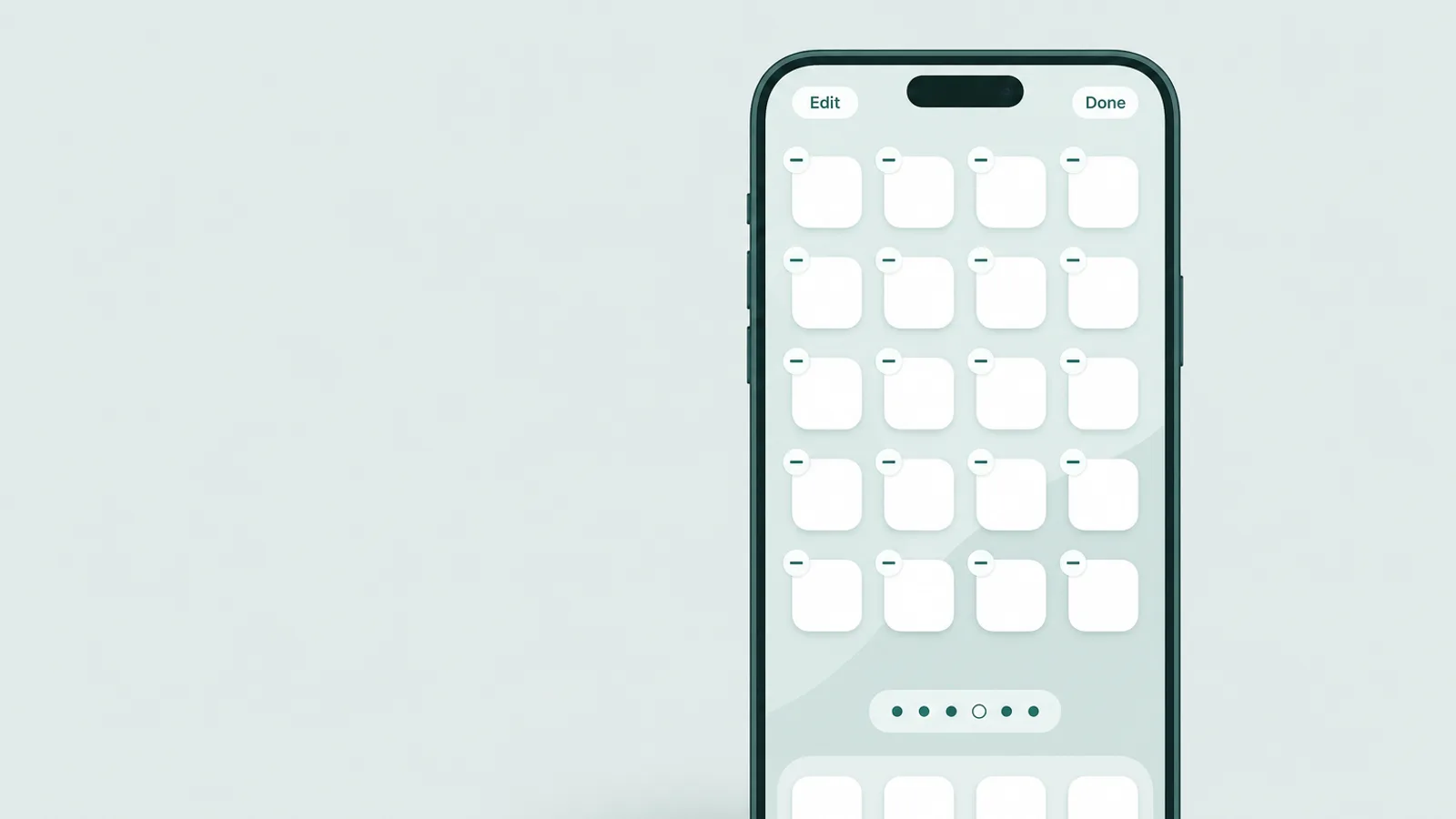
Most hiding on an iPhone isn't a locked vault at all — it's one of a few ordinary features used to move an icon out of sight. Each has a one-tap reveal, and none of them removes the app from the three screens above.
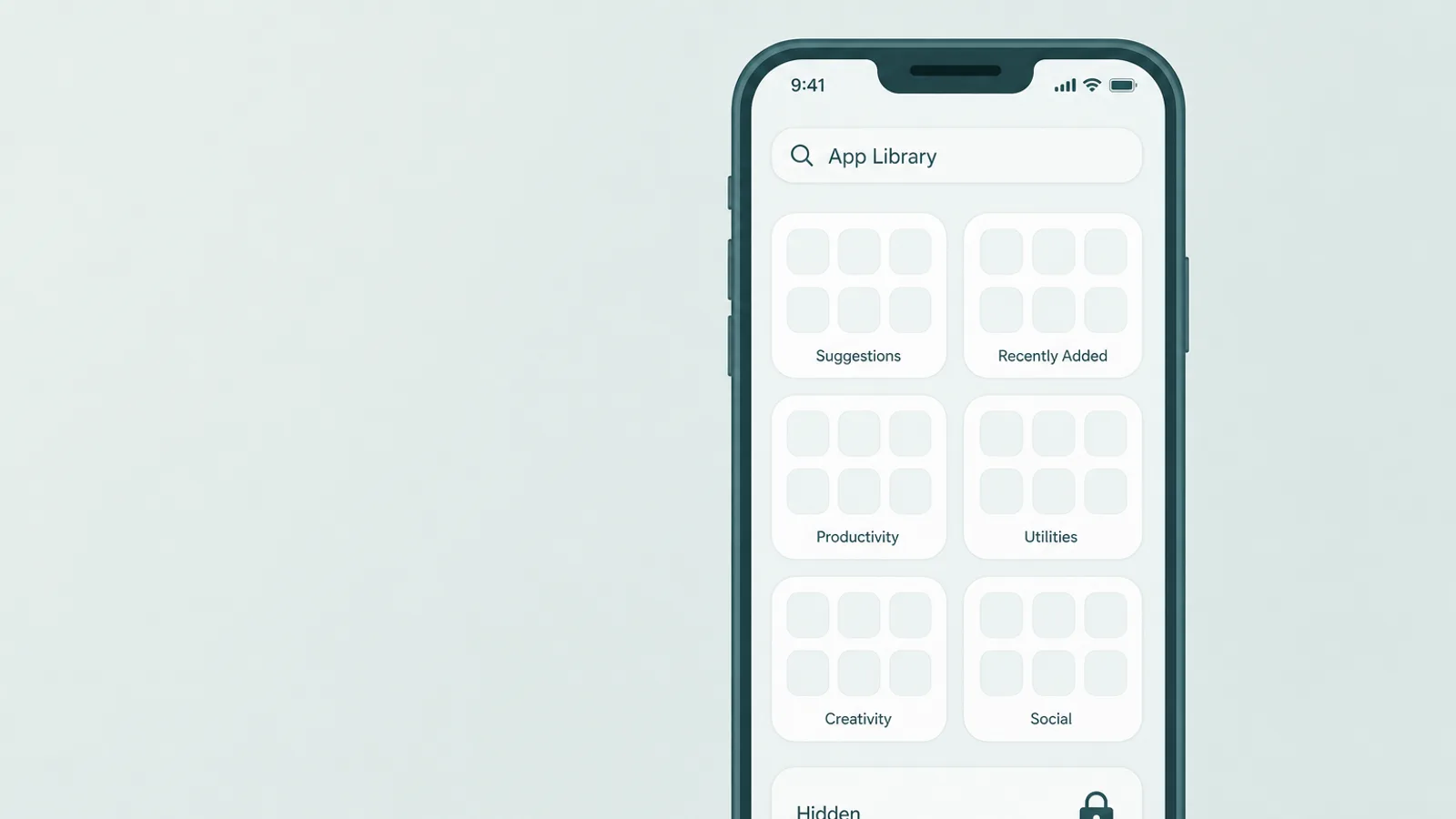
- Removed from the Home ScreenLong-press an app, tap Remove App, then Remove from Home Screen, and it stays in App Library. Reveal: swipe left past the last page to App Library and scroll or search the alphabetical list — every app is there.
- A hidden Home Screen pageIn jiggle mode, tapping the row of page dots lets you untick a whole page so it vanishes. Reveal: touch and hold an empty spot, tap the dots, and re-tick any page with an empty circle.
- Hidden from Spotlight searchIn an app's own settings, a Show App in Search toggle can be turned off so it stops appearing when you search. Reveal: a merely search-suppressed app still sits in App Library and iPhone Storage regardless of that toggle.
- Offloaded to save spaceAn offloaded app leaves a faint cloud-badge icon; tapping it re-downloads the app. It's a storage feature, not stealth — the app still appears in iPhone Storage and purchase history.
A quick reveal for ordinary apps is Spotlight: swipe down from the middle of the Home Screen and type an app's name, and iOS will find and open it even when it lives only in App Library or on a hidden page. Two caveats keep it honest — an app that's been suppressed from search, or moved into the iOS 18 Hidden folder, won't appear in Spotlight, so it isn't a substitute for App Library's alphabetical list or the Hidden Apps screen. For the everyday icon tricks, though, Spotlight and App Library together undo them in seconds.
Vault and "secret-calculator" apps — how to spot one
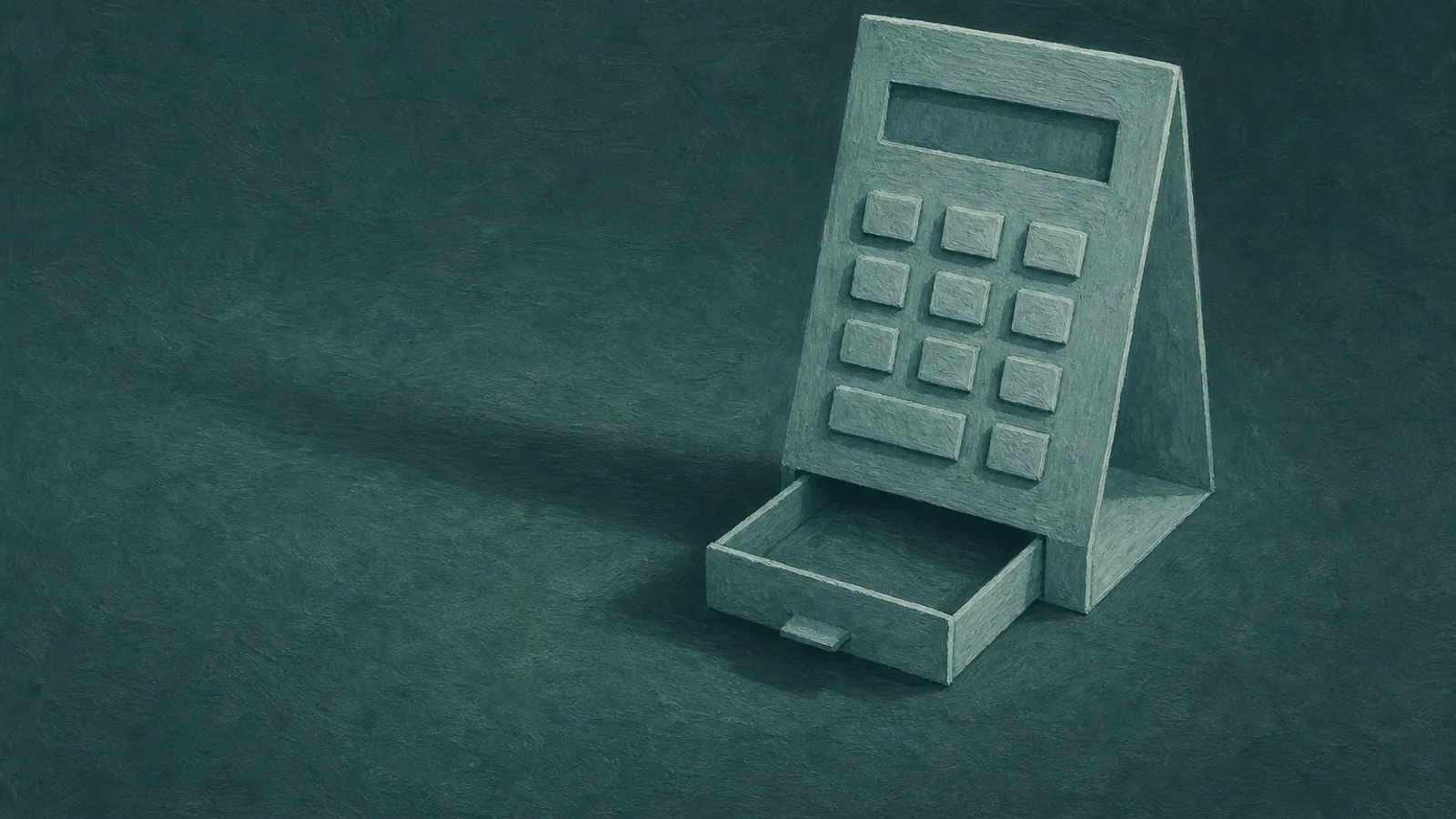
The hiding that actually worries parents isn't a moved icon — it's a vault app: an app that looks like an ordinary utility on the surface but opens a private, PIN-locked store of photos, videos, or messages behind it. The classic disguise is a working calculator. It calculates normally, so it passes a glance, but typing a secret code — often followed by a symbol like % or a decimal — opens the hidden vault. Many go further, with a decoy second PIN that opens a harmless-looking fake vault, and a break-in camera that photographs anyone who enters the wrong code.
You don't need to memorize product names, but a few examples make the pattern concrete. Commercial safety and security vendors like Bark and McAfee have long flagged this category. Typical examples include calculator-style vaults (names like Calculator% or HideU), photo vaults (such as Keepsafe or Private Photo Vault), and utilities like Hide It Pro that disguise themselves as an audio manager. There is no reliable figure for how common these are among teens — the numbers that circulate come from old or vendor surveys — so treat them as a category to recognize, not a statistic to panic over.
- Two of the same utility. A second calculator, notes app, compass, or audio manager is the strongest prompt to look closer — iOS ships one of each, so a duplicate is worth opening and checking by exact name, developer, and permissions. Plenty of legitimate third-party utilities exist, so a duplicate is a reason to verify, not a verdict.
- A utility that wants a PIN. A calculator that asks for a passcode, or has a settings gear and menus a real calculator would never need, is not really a calculator.
- Storage or permissions that don't fit. In iPhone Storage, a “calculator” using hundreds of megabytes, or one that has been granted access to Photos, Camera, or Contacts, is a red flag.
- “OPEN,” not “GET.” Search the exact app name in the App Store; if the button says OPEN instead of GET, that app is already installed on the device.
- An app in the purchase history but not on the Home Screen. Cross-referencing the two catches an app someone tried to tuck away.
A word on what this is and isn't. Finding a vault app tells you a teen wanted privacy; it does not, by itself, tell you they've done something wrong — wanting a private space is a normal part of growing up. It's a reason to talk, not a verdict, and the last section is about exactly that conversation.
Where even a good sweep still leaks

Naming the gaps isn't defeatism — it is what stops you from over-trusting a single screen and being surprised later. A few leaks are worth knowing plainly, and the fix for each is a setting plus a conversation, not an endless cat-and-mouse.
- A never-opened app. Screen Time only counts apps that have been used, so something installed and not yet opened may not appear there. The counter: iPhone Storage and the purchase history still list it, so check all three.
- A second Apple ID. An app installed under a different account won't show in your family's purchase history, and a device signed into an account outside your Family Sharing escapes your Screen Time view entirely.
- Web apps and the browser. A service used through Safari, or added to the Home Screen as a web clip, isn't an App Store install at all — it surfaces only as website activity in Screen Time, if at all, and browser-versus-Screen-Time reporting can vary between iOS versions, so don't treat it as a complete browsing log.
- Alternative app stores. In the EU, Brazil, and Japan an app can come from an alternative marketplace (and, in the EU, from a developer's website), so it won't appear in the App Store download list. Closing this needs the App Marketplaces and Web restrictions in the next section, not just the App Store block.
The takeaway isn't that the sweep is pointless — it closes the great majority of hiding on an iPhone. It's that a screen is a floor to build on and talk about, not a ceiling to relax under. The tools that promise to read every message and see every screen are a heavier, different decision, and a conversation usually reaches further than they do.
Close the door on new hidden installs
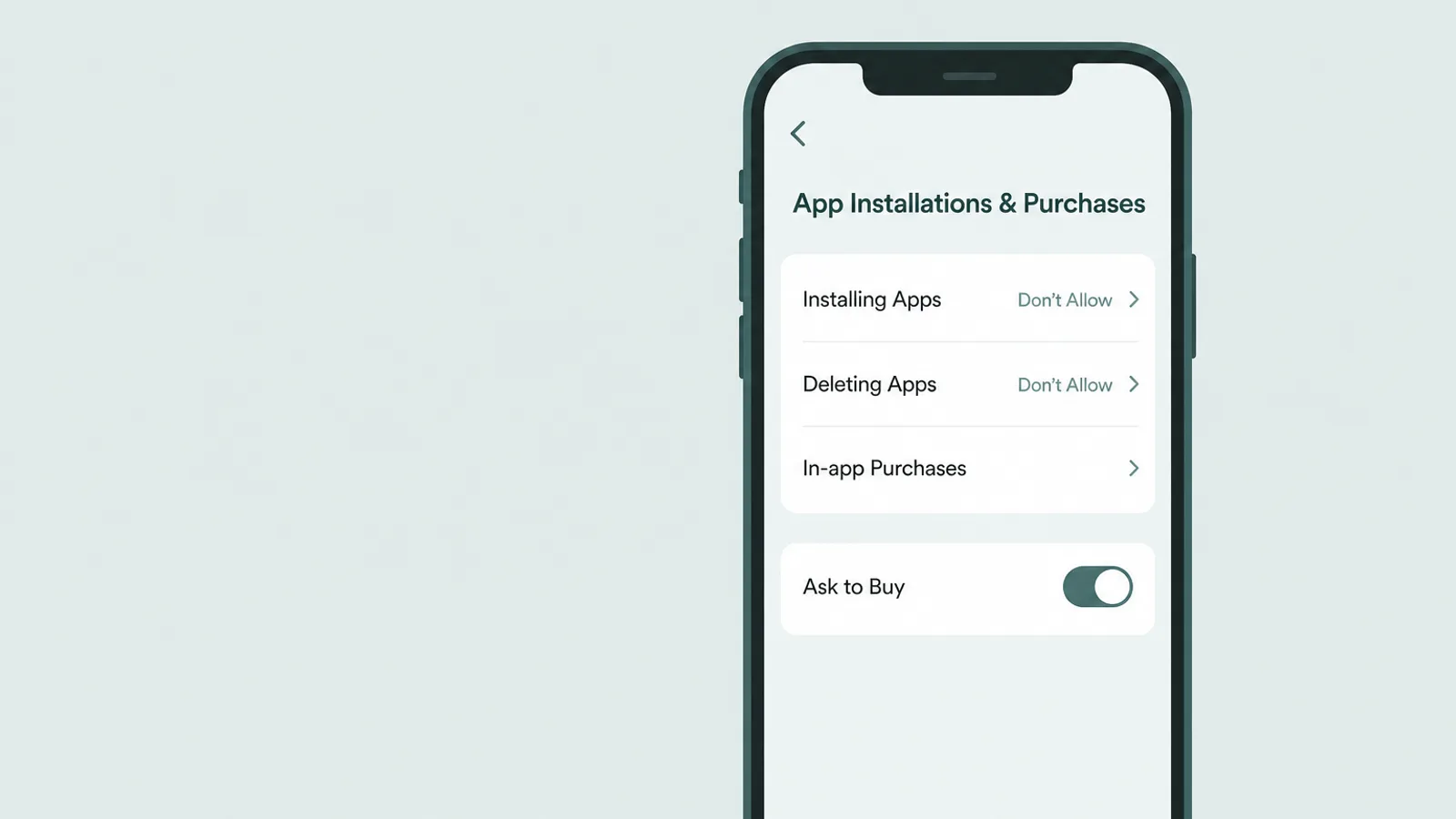
Once you've seen what's installed, a few settings stop new apps — vault apps included — from appearing quietly, and stop the usage history from being wiped. They all live in Content & Privacy Restrictions, behind a Screen Time passcode that should be different from the device passcode.
Go to Settings > Screen Time > Content & Privacy Restrictions > iTunes & App Store Purchases (labeled App Installations & Purchases on newer iOS). Set Installing Apps to Don't Allow to block new downloads, and Deleting Apps to Don't Allow — that second one quietly matters, because it stops a teen deleting an app to erase what its history would show. Back under Content Restrictions, you can also set an age-rating limit for apps (the top tier is 18+ on current iOS; the tiers were relabeled in a 2025 update, so older versions show 17+). Bear in mind that ratings filter mature content, not disguise — a calculator vault can carry a low rating — so lean on blocking installs and Ask to Buy, not the rating, to keep new vault apps out. One regional note: alternative marketplaces exist in the EU, Brazil, and Japan (with direct downloads from a developer's website an EU feature). Where they apply, set App Marketplaces and Web to Don't Allow — on current iOS these sit under App Installations & Purchases — since blocking the App Store alone won't cover those channels, and the exact options vary by region.
For a lighter touch than an outright block, turn on Ask to Buy in Family Sharing: an eligible new purchase or download — free or paid — sends an approval request to your device before it installs. It doesn't catch everything, and the exception matters here: a child redownloading an app the account already owns skips the request — so a vault app that was installed once could return without a prompt. Where you need to be sure it can't, Installing Apps: Don't Allow is the firmer setting; used together, the two turn quiet installs into ones you see. If you want the fuller walkthrough of the underlying settings, our guide to parental controls on an iPhone covers each one in order.
This ties back to the blind spots earlier. Everything here governs the iPhone well, but the same hidden-app problem lives on the household's other screens — a Windows PC, an older tablet — where iOS's checks simply don't reach, and that is one of the leaks a phone-only sweep can't close. For that specific gap, some families add device-level oversight on those machines, used openly as an agreed layer rather than a secret one — a last resort for the devices the iPhone's own controls can't see, and it works best when your teen knows it's there and why.
What to do after you find something

The hardest part isn't finding a hidden app — it's the next five minutes. This is where the checkup either builds trust or starts a quiet war, and the experts are unusually aligned on which way to lean. The Common Sense Media guidance is blunt about it: be cautious with tools that promise covert monitoring, because they “tend to prey on parents' fears,” and open dialogue is more useful anyway, since “at some point you'll need to discuss what you find.”
Be cautious with companies that promise covert monitoring, as they tend to prey on parents' fears.
— Common Sense Media, Parents' Ultimate Guide to Parental Controls
The American Academy of Pediatrics points the same direction: “communication is key,” parents should be transparent about any monitoring, and the developmental goal is a teen who learns to make good decisions on their own — which constant covert surveillance actually makes harder. With roughly four in ten U.S. teens telling Pew Research Center they are online almost constantly, no single sweep will ever substitute for that ongoing conversation.
In practice, that means leading with curiosity rather than accusation. It can be almost this plain: “I noticed there are two calculators on your phone, and I think one of them keeps things private. I'm not angry — I just want to understand what you felt you needed to hide, and from who. Can we talk about it?” That opening treats the app as information about a need — privacy from a sibling, a space of their own, sometimes something genuinely worrying — and invites the real story instead of triggering a defense.
And keep the long game in view. The aim of every screen and setting in this guide isn't a permanently searched phone; it's a young adult who practised judgment while the cost of a mistake was still small. Think of the controls as scaffolding — visible, agreed, and taken down a little at a time as your teen earns the room. A teenager who helped set the rules tends to keep them; one who only ever discovers them goes looking, again, for the next place to hide.
Frequently asked questions
How do I find hidden apps on my child's iPhone?
Start in Settings > General > iPhone Storage, which lists the apps installed on the phone no matter where the icon lives. Cross-check Settings > Screen Time > See All App & Website Activity, which shows any app that has been opened, and the App Store account's Your Apps list (its Not on This iPhone tab lists account apps not installed now — a lead to check, not proof one was ever on this phone). On iOS 18 or later the direct check is Settings > Apps > Hidden Apps, unlocked with Face ID, Touch ID, or the passcode. No single screen is guaranteed complete, but together they surface apps hidden behind icon tricks — the icon is easy to hide, the app itself much harder.
How can I see every app installed on an iPhone?
Settings > General > iPhone Storage lists the apps installed on the phone with each one's size and last-used date, whether or not the icon appears on any Home Screen, and App Library's alphabetical view (swipe left past the last page, then scroll or search) shows the ones that aren't natively hidden. On iOS 18 or later, an app moved into the locked Hidden folder is listed directly under Settings > Apps > Hidden Apps (unlocked with Face ID, Touch ID, or the passcode). Because no single screen is guaranteed complete, cross-check these with Screen Time and the App Store download history.
Where is the Hidden folder on an iPhone, and how do I open it?
On iOS 18 or later the Hidden folder sits at the very bottom of App Library — swipe left past your last Home Screen page to reach App Library, then scroll down to the folder marked Hidden. Opening it requires Face ID, Touch ID, or the device passcode. You can also see the same list under Settings > Apps > Hidden Apps. Only apps a user has actively chosen to hide appear there, and only downloaded apps can be hidden this way.
What are vault or secret-calculator apps, and how do I spot one?
A vault app looks like an ordinary utility — most often a working calculator — but a secret PIN opens a hidden store of photos, videos, or messages behind it. The clearest tell is a second calculator (or any duplicated utility) on the phone. Others: a calculator that asks for a passcode or has settings a real one wouldn't, an app using far more storage than its function suggests, or an app that shows OPEN instead of GET when you search it in the App Store.
Can my teen hide an app so I can never find it?
Not easily on an iPhone, but the sweep is not airtight. An app that was installed and never opened may not appear in Screen Time's usage report, an app installed under a separate Apple ID won't show in your family's purchase history, and a web app used in a browser isn't an App Store install at all. That is why you check several screens rather than trusting one — and why the honest goal is closing obvious gaps and keeping an open agreement, not a perfect search.
How do I stop my teen from installing or deleting apps?
In Settings > Screen Time > Content & Privacy Restrictions, open iTunes & App Store Purchases and set Installing Apps to Don't Allow and Deleting Apps to Don't Allow — the second one matters because it stops a teen from deleting an app to wipe its usage history. Separately, under Content Restrictions, set an age-rating limit for apps (the top tier is 18+ on current iOS; older versions show 17+) to filter mature titles, and in Family Sharing turn on Ask to Buy so eligible new downloads need approval — though redownloading an app the account already owns can bypass it, which is why the install block above matters. Protect all of it with a Screen Time passcode that differs from the device passcode.
Should I check my teen's phone secretly?
Most child-development experts advise against covert snooping as a default. Groups like the American Academy of Pediatrics and Common Sense Media recommend transparency: if you use monitoring or check the phone, your teen should know it happens and why. Secret searching tends to backfire when it's discovered, and teens can route around almost any control they don't buy into. A calm, open checkup — and a conversation about what you find — holds up far better than a stealth one.