
Parental Controls on iPad: A Complete Setup Guide
Set up parental controls on an iPad in iPadOS 27: the new Settings > Family paths, a new or hand-me-down iPad, shared family iPads, Guided Access and Age Range for Apps.

How iPad parental controls work

iPad parental controls are Apple's free, built-in Screen Time and Family Sharing tools, and they do four practical jobs. They set when and for how long your child can use the iPad, which apps, films and websites are allowed, who can message and call your child, and what your child can buy. There is nothing to install and nothing to pay.
The most important thing to understand is that the controls belong to your child's Apple Account, not to the iPad. Apple is explicit that a child should have their own account and not share one with anyone else. Sign the iPad in with your child's Child Account and every limit follows them; leave it signed in with your own account and the iPad simply runs your adult settings.
You also don't set any of this on the iPad itself. As long as you are the organizer or a parent in your Family Sharing group, you manage your child's controls from your own iPhone, iPad or Mac, and Apple syncs the settings to all of your child's devices.
- When and how longA Screen Time Schedule around school and sleep, plus a daily Time Allowance shared across Entertainment, Games and Social Media.
- What they can openAge ratings for apps, films, music and books, web filtering, and Ask to Browse, which makes a child ask before opening a new website.
- Who can reach themAllowed Contacts decides who can call, message and FaceTime your child, and new contacts can need your approval first.
- What they can buyAsk to Buy sends you app downloads and in-app purchases to approve first — free apps included.
It is worth the half hour. In a 2025 Pew Research Center survey, 68% of US parents of children 12 and under said their child uses a tablet, and in Pew's 2024 teen survey 70% of US teens said they have access to one. Yet a 2025 Family Online Safety Institute study found that only about half of parents (51%) use parental controls on tablets.
The good news is that a Child Account starts with age-based protections already on, so the job is mostly checking and adjusting. One framing before the steps: treat all of this as scaffolding, not surveillance — limits you set out in the open and loosen as your child shows they can handle more.
What changed in iPadOS 27
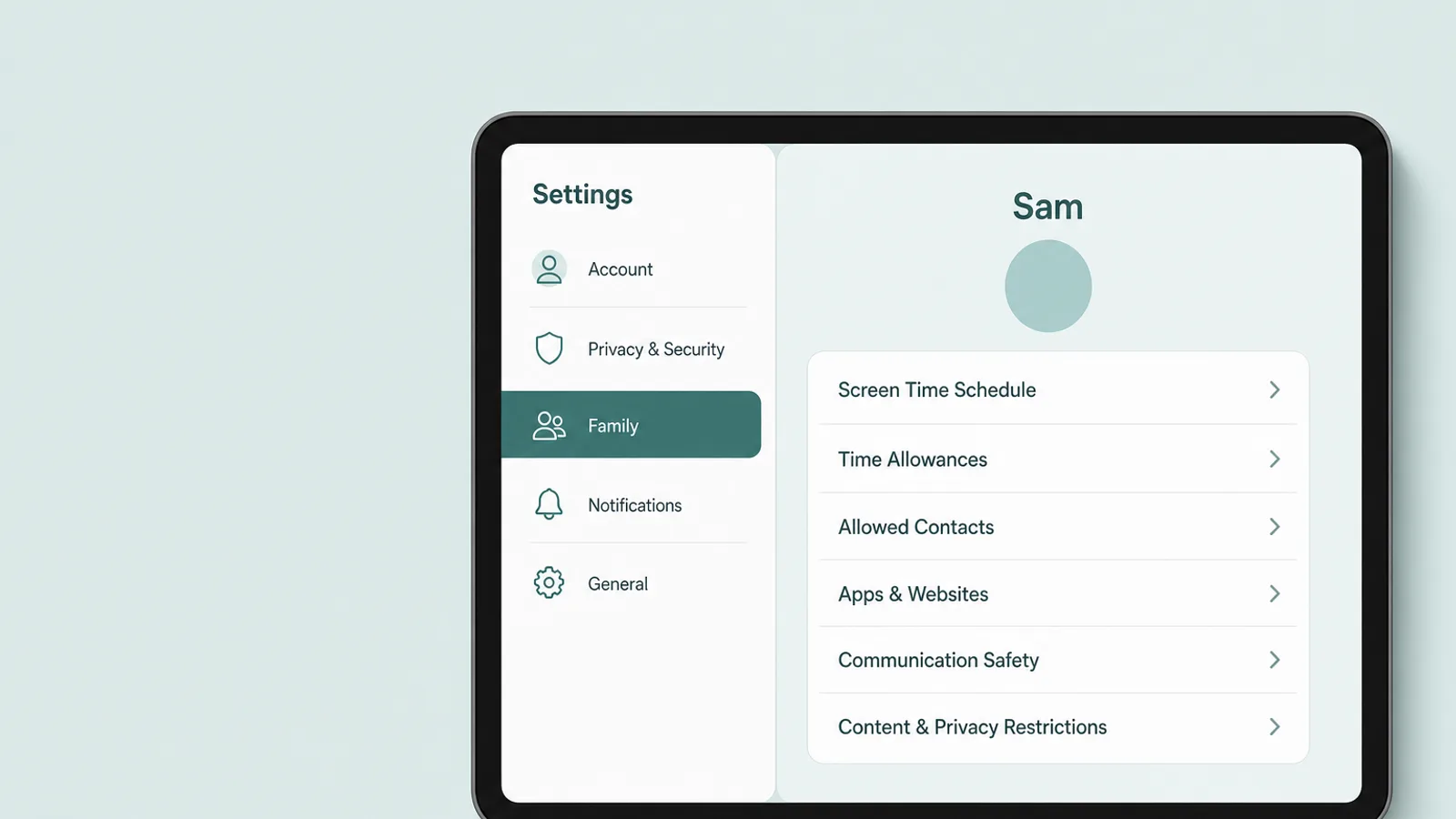
In iPadOS 27, released on 14 September 2026, Apple moved all of a child's controls into one place — Settings > Family > [your child's name] — and rebuilt Screen Time around new tools and names. If you set up controls on an older version, the settings you remember still exist in spirit, but most of them have moved or been renamed.
These updates give parents more flexibility to manage the content their children see, who they can communicate with, and when they have access to apps.
— Apple Newsroom, “Apple's new child safety features now available”, 14 September 2026
The genuinely new pieces are Time Allowances — one daily allowance, with an age-based starting point, shared across the three app categories families most often want to manage: Entertainment, Games and Social Media; Ask to Browse, which makes a child ask before opening a new website; a Pause During School Hours option; and Communication Safety that now also covers gore and violent content, not only nudity. Here is where the familiar settings went.
| iPadOS 26 and earlier | iPadOS 27 | Where to find it now |
|---|---|---|
| Downtime | Screen Time Schedule | Family > [child] > Screen Time Schedule |
| App Limits | Time Allowances | Family > [child] > Time Allowances |
| Communication Limits | Allowed Contacts | Family > [child] > Allowed Contacts |
| Web Content | Filtering: Limit Adult Websites, or Approved Websites Only (Ask to Browse) | Apps & Websites > Restrictions > Filtering |
| Ask to Buy | Ask to Buy (Require Purchase Approval) | Apps & Websites > Restrictions > Ask to Buy |
| Screen Time passcode | Lock Screen Time Settings | Family > [child] > Manage Screen Time |
If the new controls don't appear
The redesign only switches on when your family's devices are ready. Apple says the devices in your Family Sharing group must be updated — every one that can run iPadOS 27, iOS 27 or the matching Mac, Apple Watch and Vision Pro versions — to use it. A parent then has to move the family over: open Settings > Family and tap Get Started, where you can transfer your existing controls or set up new ones.
If something still looks wrong, open Settings > Family > View Family Devices. Devices that can't update are listed under Legacy Devices, and Apple says they keep using the Screen Time settings from iPadOS 26 and earlier. If you can't update every device, Apple's advice is to keep using the previous version of Screen Time or adjust the controls directly on the child's device.
Older iPads that can't update
iPadOS 27 runs on the iPad (9th generation) and later, the iPad mini (6th generation) and later, the iPad Air (4th generation) and later, and the iPad Pro 11-inch (2nd generation) and 12.9-inch (4th generation) and later. That leaves out several popular hand-me-downs, including the iPad (8th generation), iPad mini (5th generation) and iPad Air (3rd generation).
On an iPad that stays on iPadOS 26 or earlier, Screen Time keeps the older names — Downtime, App Limits, Communication Limits and Content & Privacy Restrictions — under Settings > Screen Time on that iPad. The ideas in this guide carry over; only the labels and paths differ.
Setting up a new iPad for your child
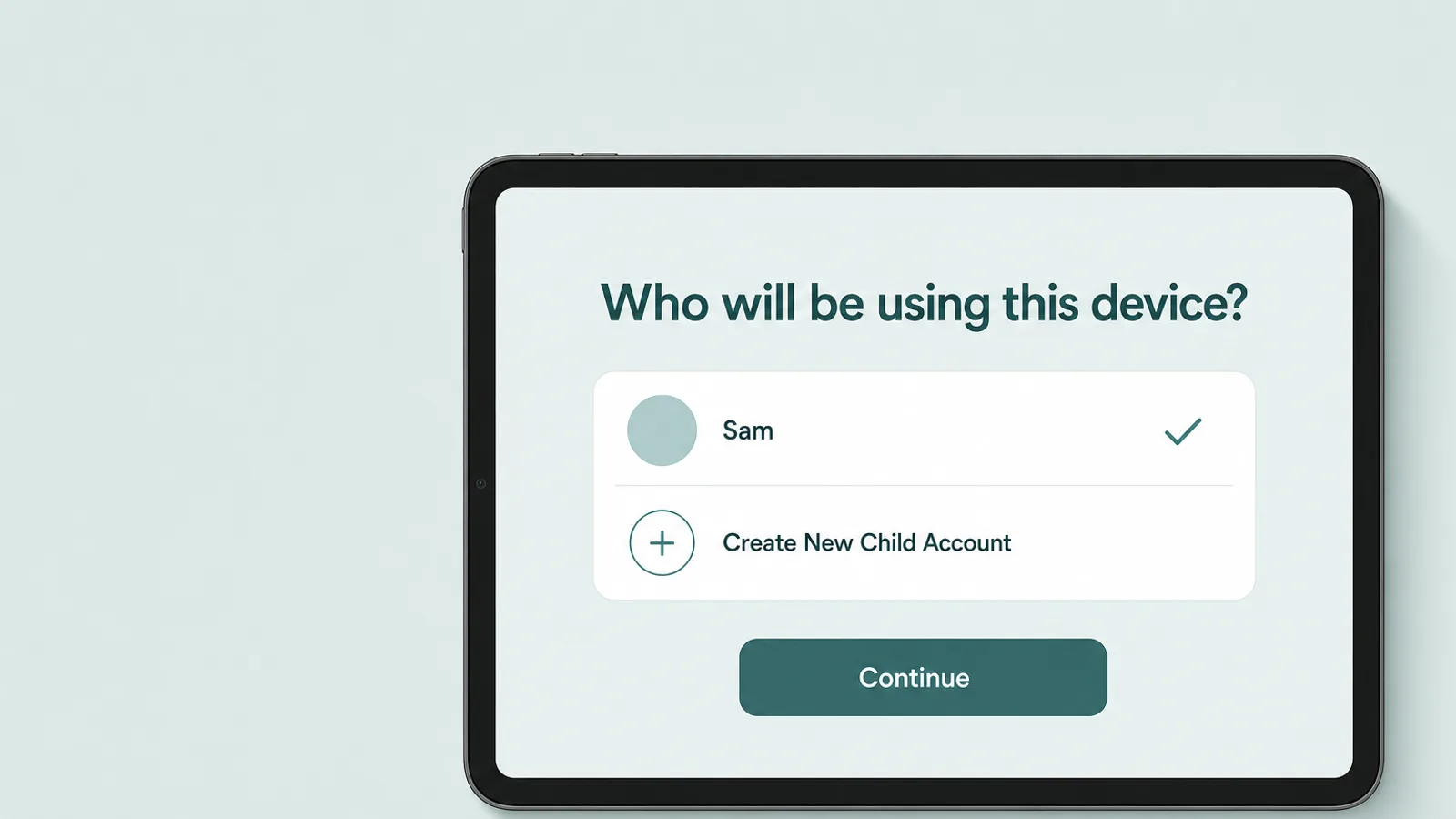
To set up a new iPad for your child, give them their own Child Account first, then set the iPad up as their device — ideally with your iPhone beside it, so the protections are on before your child ever unwraps it. Apple says a Child Account is required for children under 13 and available for children up to 18.
You can create the account in advance on your own iPhone: go to Settings > Family, tap the Add Member button, then Create Child Account, and enter your child's name and birthday. Apple asks you to be sure the birthday is correct — it drives the age-based defaults and the age range apps can see. Depending on where you live, you may be asked to confirm you're an adult first.
Thirteen is only the default age below which a child needs a parent's consent to have an Apple Account. In many countries it is higher — among others, 14 in Italy, Spain and South Korea; 15 in France and Czechia; 16 in Germany, the Netherlands, Poland, Hungary, Romania and Ireland; and 18 in Brazil and in Texas.
A worked example: the birthday iPad
Here is the order that works for a nine-year-old's birthday iPad, set up the evening before:
- Create the Child Account on your iPhone, as above, if your child doesn't have one yet.
- Turn on the new iPad with your iPhone next to it. In Quick Start, choose who will be using the new device — children under 13 in your family appear by name — or tap Create New Child Account right there.
- Start focused. Setup offers a recommended set of essential apps for a new Child Account. Start with just a few, and add more over time through Ask to Buy requests.
- Check the defaults. For a child under 13, Ask to Buy, contact management and Ask to Browse — Filtering set to Approved Websites Only — are already on, and Communication Safety is on for everyone under 18. Teens from 13 to 17 start on Limit Adult Websites instead.
- Set the schedule and allowances described in the next section, including school hours.
- Lock it. Set the Screen Time passcode on your own iPhone, not on your child's iPad — Apple requires the parent to do this from their own device. Pick four digits your child won't guess, and don't type them in front of them.
If the evening runs out, the defaults still hold. Apple says child-appropriate settings stay enabled even when a parent finishes setup later, so a half-finished setup still starts protected. For a teenager of 13 or over, who won't appear on the Quick Start screen, sign the iPad in with their own account during setup and manage everything else from your phone.
Reusing a hand-me-down iPad
If the iPad used to be yours, reset it before it becomes your child's. Back it up and sign out of your Apple Account (tap your name at the top of Settings, then Sign Out), then erase it at Settings > General > Transfer or Reset iPad > Erase All Content and Settings. Erasing also turns off Find My and Activation Lock, and nothing is deleted from your iCloud.
Don't skip the erase to save time. An iPad still signed in to your account runs your adult settings, can show your messages and buys with your card — and Apple asks for each family member to be signed in with their own Apple Account.
Screen Time Schedule and Time Allowances
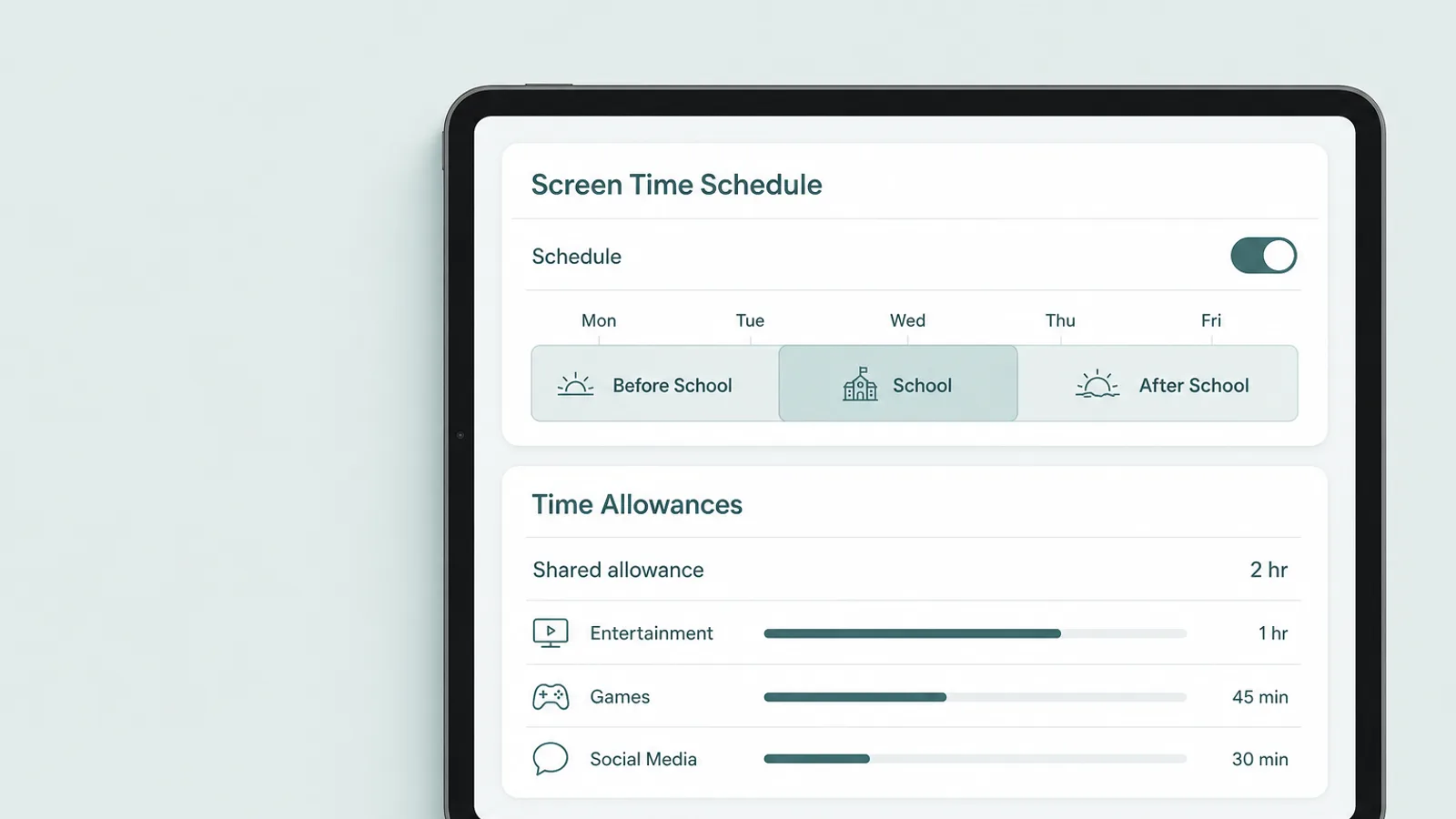
To limit when and how long your child uses an iPad in iPadOS 27, you use two tools: a Screen Time Schedule for the hours the iPad is available, and Time Allowances for how much of that time can go to entertainment, games and social media.
Open Settings > Family > [your child's name] on your own phone, tap Screen Time Schedule, turn on Schedule, then tap Add Schedule and pick the days it covers. Apple builds schedules around routines, with ready-made windows such as Before School, School and After School, so weekdays and weekends can differ.
Pause During School Hours, offered during setup, pauses Entertainment, Games and Social Media between a start and end time you choose for the school day; other apps and websites stay available. Then tap Time Allowances and the Add button. You set one daily allowance shared across those three categories — Apple suggests an age-based starting point it describes as expert-informed — and can fine-tune the time for any single category. Treat Apple's numbers as a first draft.
Apple explains that a child can use the apps in a category until they reach either that category's allowance or the shared one — which is why a game can stop even though the Games limit hasn't been reached. When time runs out, your child can send you a request for more. Where a developer has linked an app to its website, the allowance covers both.
A few essentials stay available whatever the schedule says: Apple keeps apps such as FaceTime, Maps and Messages under Always Allowed. That is deliberate — your child can still reach you — and it is why Allowed Contacts, covered below, has a separate setting for when the iPad is paused.
The redesign's best everyday feature is the at-a-glance view on your child's page. From there you can pause the iPad on the spot, which blocks most apps and notifications until you turn it back on, or allow unlimited use for a special occasion such as a plane ride or a road trip, without it counting against an allowance. You can also see daily average use, the most-used apps and pickups.
Apps, websites and purchases
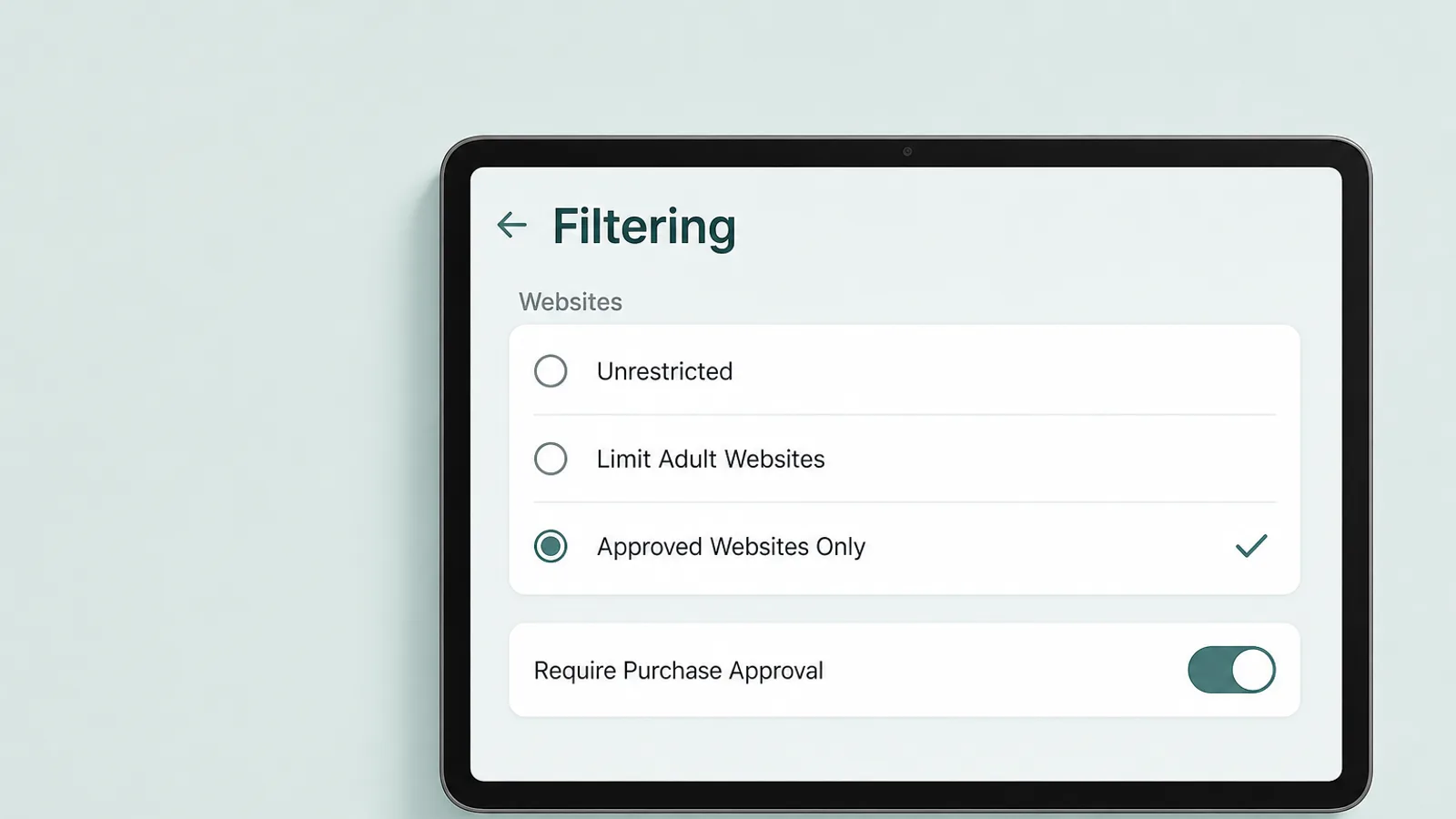
To control what your child can download, watch and browse on an iPad, use the restrictions on their page in Settings > Family: app age ratings, web filtering and Ask to Buy, plus the older Content & Privacy Restrictions for everything else.
Apps and age ratings
The App Store now uses five age ratings — 4+, 9+, 13+, 16+ and 18+ — and you choose the highest one your child can download. When your child tries an app above that limit, they see a message that content restrictions are on and can send you a request, which arrives in Messages. If you don't answer within 24 hours, they have to ask again.
You can also block a single app or website outright from your child's page, whatever its rating. Ratings come from developers' answers to Apple's age-rating questions, so treat them as a sensible floor, not a verdict: a 13+ app with open chat can matter more than a 16+ game your teen plays alone. Look at what an app lets people do, not just its number.
Web filtering and Ask to Browse
Tap Apps & Websites, then Restrictions, then Filtering under Websites. Choose Approved Websites Only, which turns on Ask to Browse and is the default for Child Accounts under 13, or Limit Adult Websites, the default from 13 to 17; Unrestricted switches filtering off.
With Ask to Browse, your child taps Ask Permission on any site that isn't approved and you say yes or no from Messages. It is on by default for children under 13, and it works in Safari and other supported browser apps — Apple doesn't list which. If you rely on it, the simplest move is to keep other browsers off the iPad by declining them through Ask to Buy.
Ask to Buy
Ask to Buy sends you a request before your child downloads any app — free or paid — or makes an in-app purchase. It is on by default for children under 13; for an older child, go to Apps & Websites > Restrictions > Ask to Buy and turn on Require Purchase Approval. You approve requests in Messages; if you don't approve one within 24 hours, your child has to ask again.
In some places the law decides for you. In Texas, for example, Apple turns Ask to Buy and some Screen Time features on for under-18 accounts created since 4 June 2026, and not even a parent can switch them off.
Everything else
Content & Privacy Restrictions holds the rest: ratings for films, TV, music and books; Siri features such as Image Creation and Writing Assistance; other features like AirDrop and the camera; and Allow Changes to Settings, which decides whether your child can change things like accounts. Leave most at their age defaults, and make sure account changes stay locked.
Contacts, messages and Communication Safety
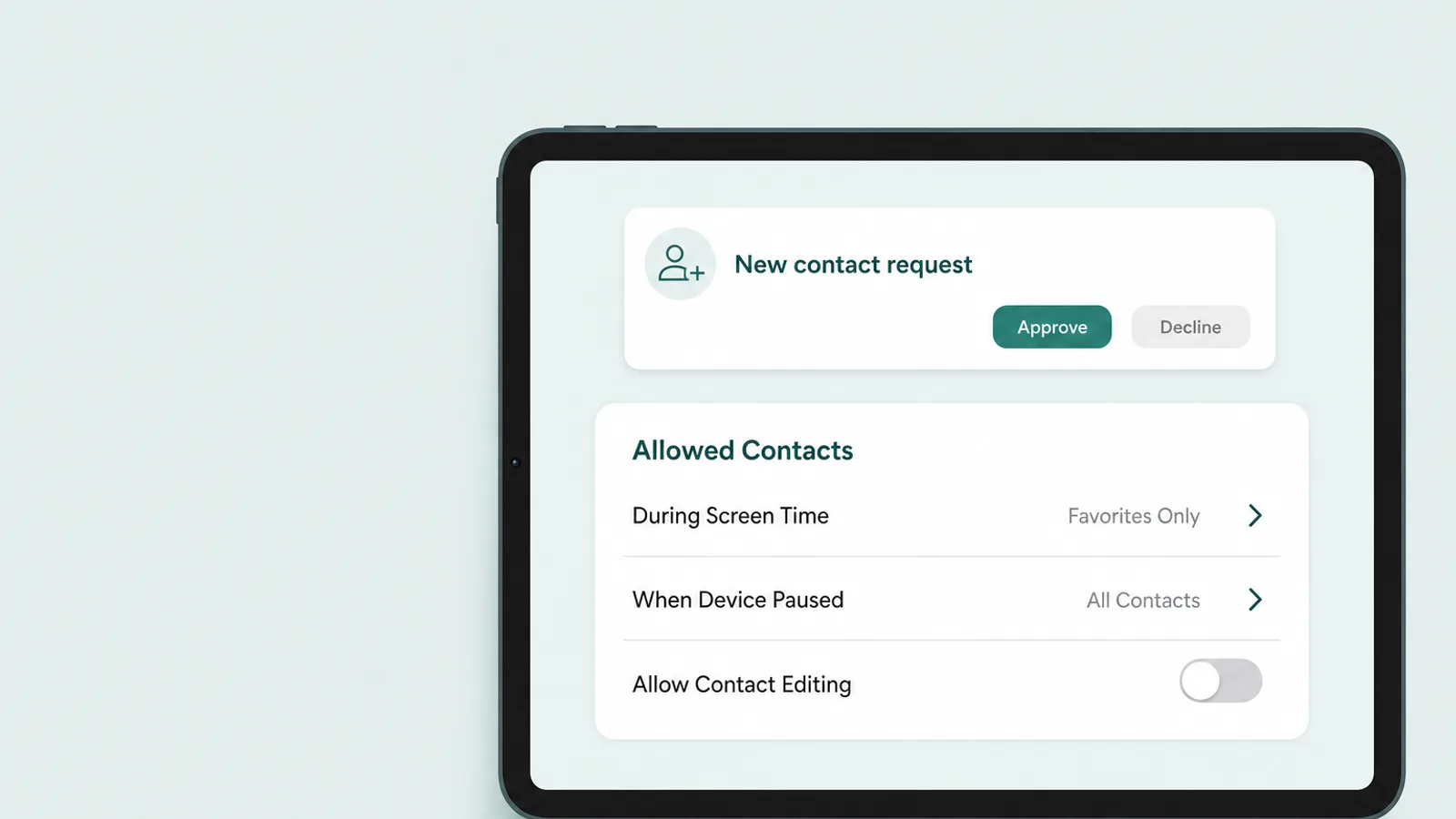
To control who can reach your child on an iPad, use Allowed Contacts on their page in Settings > Family, and keep Communication Safety on. It matters more than many parents expect: an iPad doesn't need a SIM card to be a messaging device, because iMessage and FaceTime work over Wi-Fi with your child's Apple Account — no phone number needed, even on an iPad that never leaves the living room.
Allowed Contacts
On your child's page, tap Allowed Contacts. You choose who can reach your child During Screen Time and, separately, When Device Paused or Unavailable, and you can manage your child's contact list from your own phone.
Keep Allow Contact Editing off and your child has to send you a request before adding anyone new. According to Apple, children must ask for permission before adding new contacts, and parents can review each request before their child can talk to that person through Phone, FaceTime or Messages.
Communication Safety
Communication Safety watches for images rather than people. It is on by default for everyone under 18, and it checks what arrives — and what your child tries to send — in Messages, AirDrop, Contact Posters, FaceTime and shared photo albums, and in some third-party apps when your child picks a photo or video to share. When it detects nudity, it warns your child, blurs the image and offers ways to get help, including messaging a trusted adult. The analysis happens on the iPad itself; Apple says it doesn't see the images or learn that anything was detected.
In iPadOS 27 it also warns about and blurs gore and violent content. One honest caveat: Apple's announcement says this reaches live FaceTime calls, but its support page limits gore and violence detection to FaceTime video messages. So, by Apple's own support page, nudity detection works in a live FaceTime call; violence detection may not.
What these settings largely don't reach is third-party messaging. WhatsApp, Snapchat and Discord have their own rules and their own controls, and Allowed Contacts doesn't decide who your child talks to there. That is where Ask to Buy earns its keep: you choose which of those apps reach the iPad at all.
Age Range for Apps

Age Range for Apps is an Apple setting that lets an app learn your child's age range — not their birthday — so it can adjust what it shows them. When an app asks, it receives a range worked out from the birthday on your child's Apple Account, and it can use that to switch on age-appropriate protections.
Sharing an age range is your choice, and sharing your age range keeps your actual age and birthday private.
— Apple Support, “Share your age range with apps”
To set it for your child, go to Settings > Family > [your child's name] and tap Age Range for Apps — or, if Screen Time is on, Personal Information and then Age Range for Apps. As the organizer or a parent, you decide how sharing works under Share with Apps. With Ask First, your child chooses whether to share each time an app asks, and a history shows which apps it was shared with.
Two things to know. In some states and countries the law makes sharing automatic — in Texas, for accounts created since 4 June 2026, Apple always shares the age range with developers. And the range is only as good as the birthday: if the account was created with a made-up year, every app gets the wrong range, and so do the age-based defaults.
Should you share it? For most families, yes. Sharing a range is what lets an app treat an 11-year-old as an 11-year-old. For a teenager, Ask First is a good middle ground, and looking at the history together now and then is a natural way into a conversation about the apps they use.
What's different on an iPad

What is different about an iPad is less the settings than the way families use it: it is often shared, often a young child's first device, and often a Wi-Fi-only screen that stays at home. Each of those changes which control matters most.
One iPad, several children
A family iPad has no user profiles. Apple's Shared iPad, which does switch between users, works only on iPads managed by a school or business with Managed Apple Accounts, and iPadOS 27 didn't change that. So a family iPad runs the rules of whichever Apple Account is signed in, for whoever picks it up.
That makes the account itself the most important control on a shared iPad. Never leave it signed in to a parent's account — that means adult settings, your messages and your card. Sign it in to the youngest regular user's Child Account, so the strictest rules apply to everyone, and give an older sibling their own account on their own device once one set of rules stops being fair.
Sharing isn't a bad thing. The American Academy of Pediatrics advises parents to “delay personal tablets”, because “shared devices encourage co-use and make it easier to monitor content.” A shared iPad in the living room is a good first device — as long as it is signed in to the right account.
Guided Access: the iPad's kids mode
For a young child, the most useful iPad control isn't in Screen Time at all. Guided Access locks the iPad to a single app — one video, one game — until you unlock it. Turn it on in Settings > Accessibility > Guided Access and set a passcode; Face ID or Touch ID can end a session too.
Then open the app, triple-click the top button (or the Home button on older iPads), circle any part of the screen you want to disable, and tap Start. In Options you can switch off touch, the volume buttons, motion and the on-screen keyboard, and set a Time Limit after which the iPad shows a full-screen message.
With Guided Access, you can temporarily restrict your device to a single app. This can be useful when you let a child use your device, or you want to stay focused on a task.
— Apple Support, “Use Guided Access on iPhone or iPad”
That is the use most parents need: Guided Access is how you hand a toddler your iPad in a waiting room without them wandering into your email.
Small things that work differently
- Screen Distance, which reminds a child to hold the screen further from their eyes and is on by default for under-13s, needs a TrueDepth camera — the Face ID camera, which among iPads only the iPad Pro has.
- Location works differently on a Wi-Fi-only iPad, which has no GPS: it locates itself through Wi-Fi, and Find My shows its last known location if it goes offline. For knowing where your child is, their phone or watch is the better tool.
- School iPads signed in with a Managed Apple Account can't join your Family Sharing group, and the school can lock Screen Time settings. The school's own filters apply there, so ask what they cover.
- Windows and keyboards: Apple documents no special behaviour for Screen Time with windowed apps, Stage Manager or an attached keyboard, so set limits the same way you would on any iPad.
Setting it up with your child

The controls work best when your child knows what they are and why — so set them up together, and plan from the first day how you will loosen them. For a young child, limits are simply part of the furniture; for a teenager, they are a statement about trust.
Either way, show your child what you have set and tell them how to ask for more. A request for extra time, a new app or a new website comes to you, and a quick, fair answer is what keeps them asking instead of looking for a way around you.
- Under 8Guided Access for single-app sessions, a small set of approved apps, Ask to Browse and Ask to Buy, and the iPad used where you are.
- 8 to 12Their own Child Account with the defaults on, a schedule around school and sleep, allowances near Apple's starting points, and new contacts approved.
- 13 to 15Limit Adult Websites instead of Ask to Browse, wider allowances where they have earned them, Ask to Buy and contact approval kept, and a monthly review.
- 16 and 17Mostly schedules and a few guardrails, more talking than blocking, and a shared plan for 18, when they can manage their own Screen Time.
Expect some testing of the limits. In a 2026 survey for the UK Information Commissioner's Office, 41% of children aged 8 to 17 said they had tried to get around controls or monitoring tools, and nearly half of those found it easy. The answer is rarely a tighter lock. It is a private passcode, an up-to-date iPad and limits that fit your child's age — and a conversation when a workaround turns up.
Teenagers can't simply walk away from the rules, either. For members aged 13 to 17 with Screen Time on, Apple requires the organizer to turn it off before they can leave or be removed from the family group. At 18 they decide for themselves.
The iPad is one screen among several. For your child's phone, see our guides to the iPhone and to Google Family Link for Android — if an iPhone setting name there differs from this guide, the old-to-new map in “What changed in iPadOS 27” translates it — and our complete guide to parental controls covers the rest of the house.
And plan, from the first day, to take it down. Parental controls are scaffolding, not surveillance: the point is to remove them piece by piece as your child grows into managing their own iPad.
Frequently asked questions
Does the iPad have parental controls built in?
Yes. Every iPad has free parental controls built in through Screen Time and Family Sharing, with no app or subscription needed. In iPadOS 27 you manage them from your own iPhone at Settings > Family > your child's name: a Screen Time Schedule and Time Allowances for time, age ratings and web filtering for content, Allowed Contacts for who can reach your child, and Ask to Buy for downloads and purchases. Many of these are on by default for a Child Account.
Can I control my child's iPad from my iPhone?
Yes, if you are the organizer or a parent in your Family Sharing group and your child's iPad is signed in with their own Child Account. On your iPhone, open Settings > Family and tap your child's name to change schedules, allowances, contacts and restrictions, and the changes sync to your child's devices. In iPadOS 27, the new controls appear only after every family device that can update has been updated. Apple lets you manage Screen Time from your own iPhone, iPad or Mac.
Can you have multiple users on one iPad?
Not on a family iPad. Multiple users are supported only through Shared iPad, which requires the iPad to be managed by a school or business with Managed Apple Accounts. A personal iPad runs the controls of whichever Apple Account is signed in, for whoever uses it. If children share one, sign it in to the youngest child's Child Account so the strictest rules apply, never leave it on a parent's account, and give an older child their own account and device when one set of rules stops fitting.
Is there a kids mode on the iPad?
There is no separate kids mode, but Guided Access does the job for young children: it locks the iPad to one app until you unlock it. Turn it on in Settings > Accessibility > Guided Access and set a passcode. Then open the app, triple-click the top button (or the Home button on older iPads) and tap Start. You can disable parts of the screen and the buttons, and set a time limit. For older children, a Child Account with Screen Time is the real kids mode.
Why are the new parental controls not showing on my child's iPad?
Usually because not every device has been updated. Apple requires every device in your Family Sharing group that can update to run iPadOS 27, iOS 27 or the matching versions before the redesigned Screen Time appears, and a parent must then tap Get Started in Settings > Family to move the family over. Check Settings > Family > View Family Devices: devices that can't update appear under Legacy Devices and keep using the Screen Time settings from iPadOS 26 and earlier.
Can my child turn off Screen Time on their iPad?
Not without the Screen Time passcode, which Apple asks parents to set on their own device rather than the child's. Your child can see their settings but can't change them, and a teenager aged 13 to 17 can't leave your family group unless you turn Screen Time off first. Children do look for workarounds, so keep the passcode private, keep the iPad updated, and treat any attempt as the start of a conversation rather than an arms race.
How do I set up a new iPad for a child under 13?
Create a Child Account first, which is required under 13: on your iPhone, go to Settings > Family, tap Add Member, then Create Child Account, and enter your child's real birthday. Turn on the new iPad next to your iPhone, choose your child as the person who will use it in Quick Start, start with a small set of apps, and set the Screen Time passcode on your own phone. Ask to Buy, Ask to Browse and other protections are on by default.